Compress PDF Without Losing Quality: Simple Tips
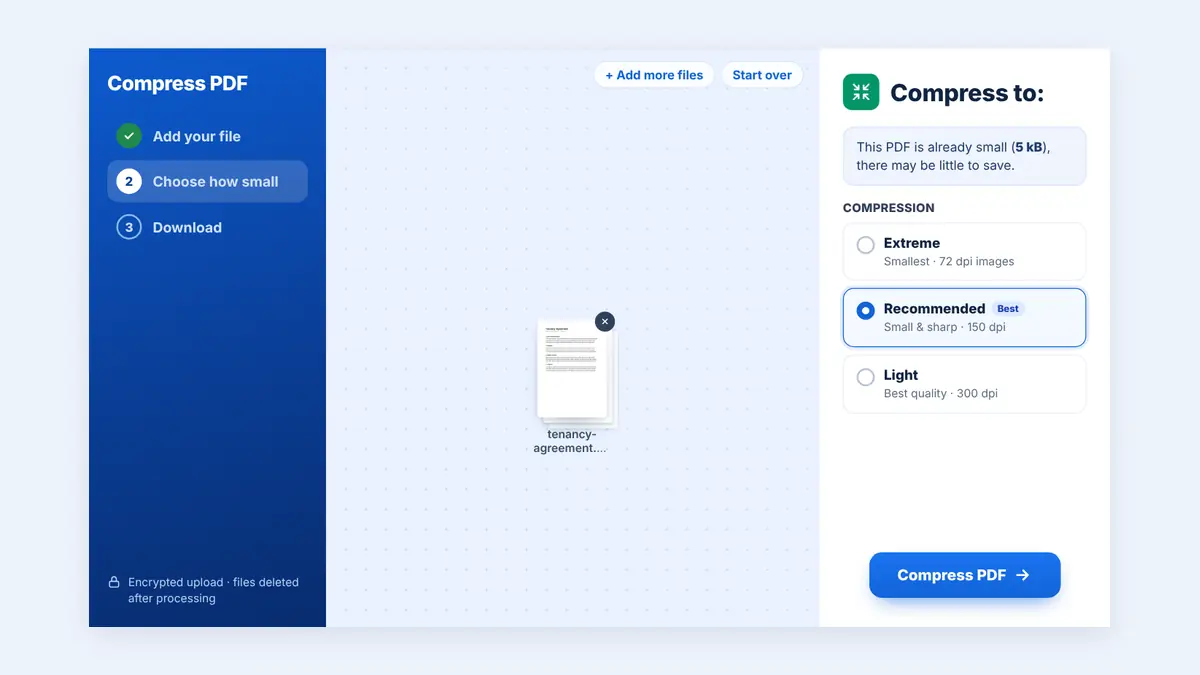
Learn how to compress PDF files without losing track of quality. Discover compression tips, ways to preserve readability, and how to reduce PDF size online.
Large PDF files can be difficult to email, upload, and share. Compressing them can make document management easier, but reducing file size should not come at the expense of readability. Blurry images, unclear text, and distorted charts can make an otherwise useful document difficult to work with.
The good news is that you can often reduce PDF file size while maintaining good visual quality. The key is to understand what makes a PDF large, choose an appropriate compression method, and check the final document before sharing it.
In this guide, we explain how to compress PDF files without losing track of quality and how to choose the right balance for different types of documents.
What Does PDF Compression Do?
PDF compression reduces the amount of data required to store a document. Depending on the file and the method used, compression may optimize images, reduce unnecessary data, or use more efficient ways to store document content.
Some methods preserve the original content exactly, while others reduce image quality to achieve a smaller file size. The results depend on the original PDF, its contents, and the compression settings.
For example, a PDF containing high-resolution photographs may offer more opportunities for size reduction than a text-only document that has already been optimized.
How to Compress PDF Files Without Losing Quality
Follow these practical steps to reduce file size while keeping your document readable.
1. Start With the Original PDF
Before compressing a file, save an unchanged copy of the original document. This gives you a reference for checking image clarity, text readability, and page layout after compression.
Keeping the original also allows you to try different compression settings without repeatedly processing an already compressed file.
2. Choose the Right Compression Level
If your PDF tool offers multiple compression levels, select one that matches your intended use.
High quality: Best for documents containing detailed graphics, photographs, technical drawings, or content intended for printing.
Balanced compression: Suitable for everyday business documents, reports, invoices, and general sharing.
Smaller file size: Useful when upload limits are strict or the document is primarily intended for quick screen viewing.
A more aggressive setting may produce a smaller file, but it can also reduce image quality. Start with moderate compression and increase it only when necessary.
3. Understand What Makes Your PDF Large
Different PDF files require different approaches.
Text-based documents: These often compress less because text and fonts may already be stored efficiently.
Scanned documents: Each page may contain a large image. Image optimization can reduce the file size, but excessive compression can make scanned text difficult to read.
Photograph-heavy PDFs: High-resolution images can take up considerable space. Reducing image resolution or quality may help, provided the details remain clear enough for the intended use.
Reports with charts and diagrams: These require particular care because small labels, fine lines, and numerical details must remain readable.
4. Avoid Excessive Image Compression
Images are often the largest contributor to PDF file size. However, reducing their quality too much can create visible artifacts, blurry edges, and pixelated details.
If your document contains charts, logos, signatures, or small text embedded in images, inspect these areas carefully after compression. For printing, technical drawings, and detailed presentations, a less aggressive setting may be preferable.
5. Compare the Compressed File With the Original
After processing, open both versions and compare them.
Check the following:
Is all text readable at normal viewing size?
Are photographs and diagrams still clear?
Are tables, numbers, and chart labels intact?
Have fonts, page layouts, or spacing changed unexpectedly?
Is the compressed file small enough for your needs?
Do not judge the result by file size alone. A smaller document is useful only if it remains suitable for its intended purpose.
How to Compress a PDF Online With HuntPDF
You can use HuntPDF's online PDF tools to simplify document management without installing desktop software.
Step 1: Open HuntPDF
Visit HuntPDF.com and locate the Compress PDF tool.
Step 2: Upload Your Document
Choose the PDF file you want to reduce. Check that you have selected the correct document before starting.
Step 3: Apply Compression
Use the compression options available on the tool page. If multiple levels are offered, start with a balanced setting when preserving readability is important.
Step 4: Download the Compressed PDF
Wait for processing to finish and download the resulting document.
Step 5: Check the Quality
Open the downloaded PDF and compare its text, images, and page layout with the original. If the quality is not good enough, try the Light setting instead.
Always open the compressed file and check it before you send it.
How Much Can You Reduce a PDF File?
There is no single compression percentage that applies to every document. Results depend on the original file size, image content, existing optimization, and compression method.
Consider these illustrative examples:
| Original PDF | Compressed PDF | Size reduction |
|---|---|---|
| 10 MB | 8 MB | 20% |
| 20 MB | 12 MB | 40% |
| 50 MB | 25 MB | 50% |
These figures are examples, not guaranteed outcomes. A text-heavy PDF may shrink very little, while a document containing large images may offer more opportunities for compression.
To calculate the percentage reduction, subtract the compressed size from the original size, divide by the original size, and multiply by 100.
For example, reducing a 20 MB file to 12 MB represents a 40% reduction.
Common PDF Compression Mistakes
Compressing the Same File Repeatedly
Repeated lossy compression can further degrade image quality. Whenever possible, return to the original PDF when trying a different compression level.
Choosing the Smallest File Size Automatically
The smallest output is not necessarily the best one. A slightly larger PDF may preserve important details and remain easier to read.
Ignoring Print Requirements
A document that looks acceptable on a phone may not retain sufficient detail for printing. Consider the final use before selecting a compression level.
Forgetting to Check Every Page
Quality issues may appear only on pages containing photographs, diagrams, or small text. Review the entire document rather than checking just the first page.
Uploading Sensitive Documents Without Checking Privacy Policies
Before using an online compressor, review its security practices and file-retention policy. Take particular care with confidential financial records, contracts, identification documents, and personal information.
Frequently Asked Questions
Can I compress a PDF without losing quality?
Sometimes. Optimization and lossless compression can reduce file size without changing the document's content, but the amount of reduction may be limited. If image quality is reduced, some loss may be visible.
What is the best compression setting for PDF files?
For everyday sharing, a balanced setting is a sensible starting point. Choose higher-quality settings for detailed graphics or printing, and use stronger compression only when smaller file size is more important than preserving every image detail.
Why does my PDF remain large after compression?
Your PDF may already be optimized, or it may contain high-resolution photographs, scanned pages, embedded resources, or other content that is difficult to reduce without affecting quality.
Does compressing a PDF affect text?
Text generally remains clear when compression optimizes other parts of the document. However, text contained inside scanned page images can become blurry if those images are compressed too aggressively.
Can I compress a PDF on my phone?
Yes. Compatible browser-based tools allow you to upload and process PDFs from smartphones and tablets. Availability and performance depend on the tool and device.
Is a compressed PDF suitable for printing?
It can be, provided the document retains sufficient resolution and detail. Always inspect photographs, fine lines, small labels, and other important content before printing.
Is online PDF compression safe?
Safety depends on the service's security measures, privacy practices, and handling of uploaded files. Review these policies before uploading confidential information.
Conclusion
Compressing PDF files without losing track of quality requires more than simply choosing the smallest output size. Start with the original document, select an appropriate compression level, and inspect the final result carefully.
For everyday sharing, balanced compression can provide a useful combination of smaller files and readable content. For detailed graphics or printing, preserving quality may be more important than achieving the maximum possible reduction.
Visit HuntPDF.com to explore online PDF tools and make document management simpler.
Free HuntPDF tools for this task
- Compress PDF without losing quality: Light, Recommended or Extreme
- Convert a PDF to black and white: smaller files for text documents
- Compress images first: shrink photos before building the PDF
- HuntPDF.com: every free PDF and image tool in one place, with no sign-up and no watermark
Related guides: Free PDF compressor: quality vs. size · How to reduce PDF file size for sharing


Comments
Post a Comment