How to Fill In a PDF Form Online Without Printing
Job applications, tax forms, school registrations, and rental agreements often arrive as PDFs. The old routine was to print the form, fill it in by hand, sign it, scan it, and email it back. With an online form filler you can skip the printer and the scanner entirely and send a neat, readable form in minutes.
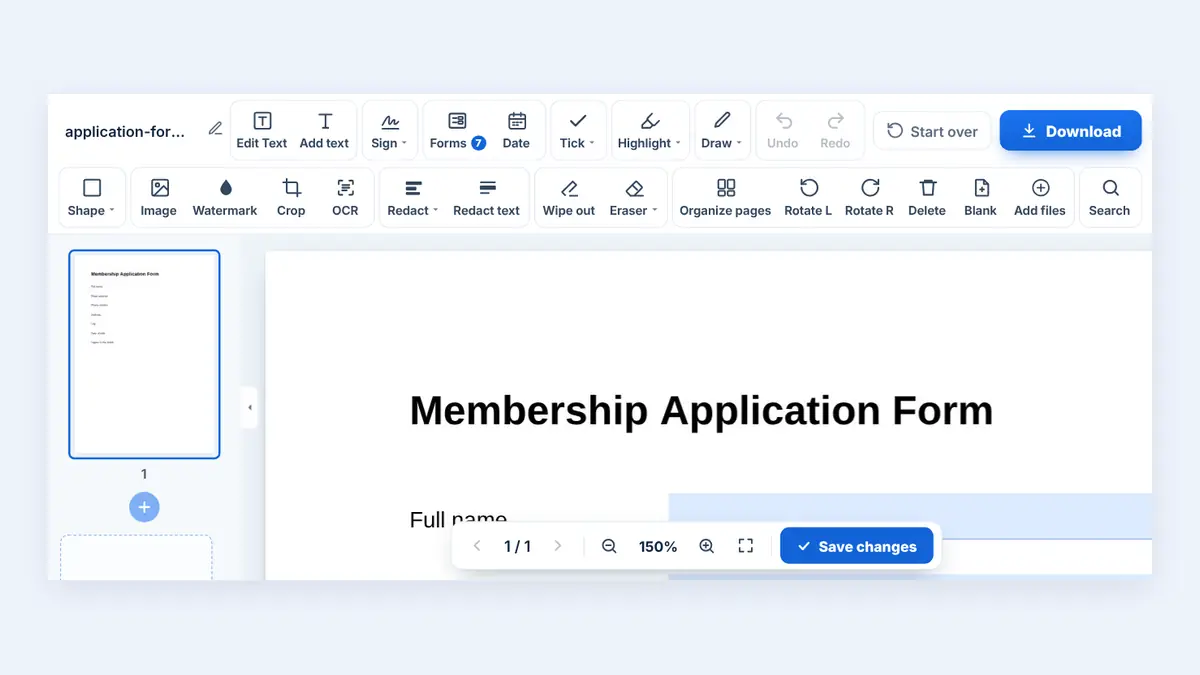
This guide explains the two types of PDF forms, how to fill them in online, and how to make sure your answers stay exactly as you entered them.
Fillable Forms vs. Flat Forms
A fillable form has interactive fields built into it: text boxes, checkboxes, radio buttons, and drop-down lists. You click a field and type.
A flat form is just a picture of a form, often a scanned paper document. There are no fields to click, so you need to place text on top of the page yourself.
A quick test: open the PDF and click a blank answer line. If a cursor appears or the field is highlighted, it is fillable.
How to Fill a PDF Form Online
Step 1: Open the form filler
You can fill in PDF forms online without installing software. Fillable fields are highlighted so you can see where to type.
Step 2: Upload the form
Select the PDF from your device or a cloud drive.
Step 3: Complete each field
Type your answers, tick checkboxes, and choose options from drop-down lists. Use the Tab key to move from one field to the next.
Step 4: Sign if required
Many forms need a signature. You can draw, type, or upload your signature and place it in the signature box.
Step 5: Download and review
Open the completed form and read every page before sending it.
What If the Form Is Not Fillable?
For flat or scanned forms, use a PDF editor to add text boxes on top of the answer lines. Match the font size to the form and keep your text inside the spaces provided.
Lock Your Answers Before Sending
Form fields can still be edited after you fill them in, and some viewers display field contents differently. To make your answers part of the page so they look the same everywhere and cannot be changed easily, flatten the completed form before you send it.
Always keep an unflattened copy in case you need to correct something later.
Tips for Filling Forms Correctly
- Read the instructions on the form before you start.
- Use the exact formats requested for dates, phone numbers, and ID numbers.
- Do not leave required fields empty; write "N/A" where appropriate.
- Save the file with a clear name, such as "Surname-Application-Form.pdf".
Frequently Asked Questions
Can I fill a PDF form on my phone?
Yes. Online form fillers work in mobile browsers, so you can complete forms without a computer.
Will the recipient see my answers?
Yes. Your answers are saved in the downloaded PDF. Flattening helps ensure they display the same in every viewer.
Is a typed signature legally valid?
It depends on the document and the country. For contracts and official forms, check what kind of signature the organisation accepts.
Conclusion
Filling PDF forms online saves paper, time, and messy handwriting. Fill the fields, sign, flatten the final copy, and check everything before you send it.
Free HuntPDF tools for this task
- Fill PDF forms online: type into fields and tick boxes
- Add a signature: draw, type or upload it
- Flatten a filled form: lock your answers in place
- HuntPDF.com: every free PDF and image tool in one place, with no sign-up and no watermark
Related guides: How to sign a PDF online · How to edit a PDF online


Comments
Post a Comment