Edit PDF Online Free: Modify Text and Annotate Files
PDF files are widely used for business documents, school assignments, application forms, reports, and contracts. However, editing a PDF can be challenging when you need to correct text, add comments, highlight important information, or mark up a document before sharing it.
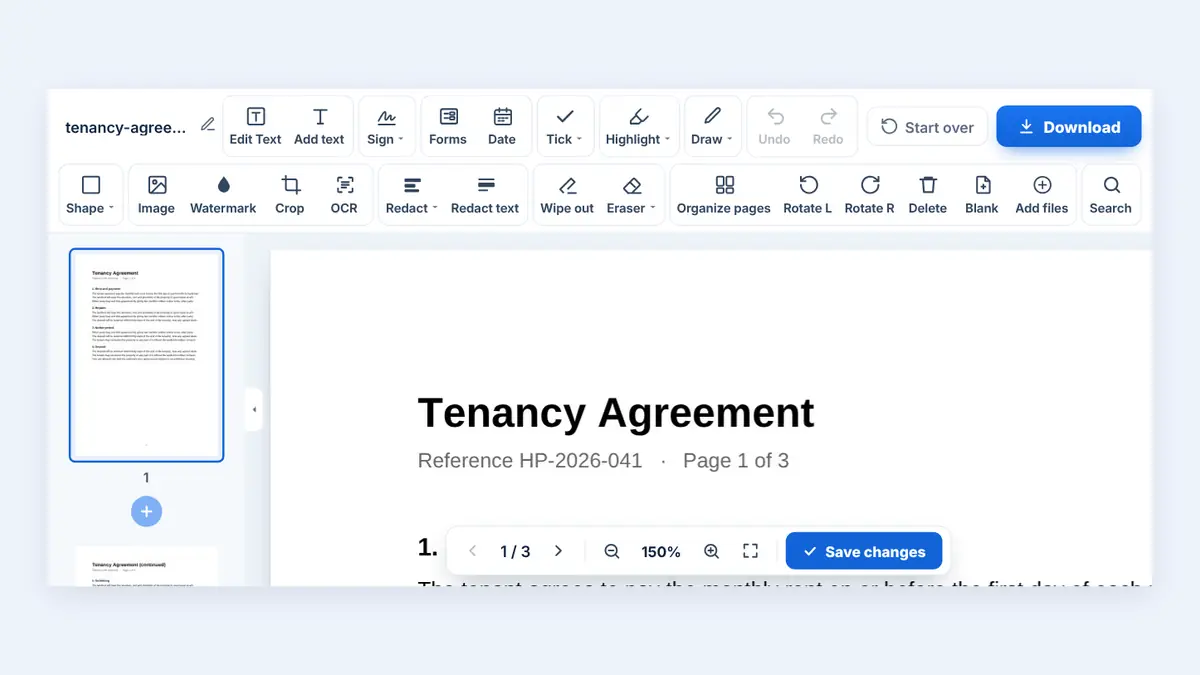
An online PDF editor can help you make these changes without installing desktop software. In this guide, you will learn how to edit PDF files online for free, understand the difference between editing text and annotating a document, and choose the right approach for your needs.
What Does It Mean to Edit a PDF Online?
Editing a PDF means changing or adding information to an existing PDF document. Depending on the editor, this may include modifying text, adding images, inserting comments, highlighting sentences, drawing shapes, or adding signatures.
Not every PDF editor offers the same capabilities. Some tools focus on annotations, while others allow you to change existing text or rearrange document elements.
Before choosing an editor, identify the change you want to make. A simple correction may require a full PDF editor, while highlighting a paragraph only requires an annotation tool.
How to Edit a PDF Online for Free
The process depends on the editing features supported by your chosen tool. In general, follow these steps:
Open an online PDF editor: Choose a tool that supports the type of changes you need.
Upload your PDF file: Select the document from your computer or device.
Choose an editing feature: Look for text editing, highlighting, comments, drawing, or other available options.
Make your changes: Review the document carefully to ensure that the layout remains readable.
Save or download the edited PDF: Export the updated document if the editor supports downloading the modified file.
Review the final document: Open the saved PDF and check that your changes appear correctly.
Always confirm that the editor supports your required task before uploading an important document.
How to Modify Text in a PDF
Changing existing text is one of the most common reasons people search for a free PDF editor. You might need to correct a spelling mistake, update a date, change a contact detail, or revise a sentence.
However, modifying existing PDF text is not always straightforward. A PDF may contain embedded fonts, complex layouts, scanned pages, or text converted into images.
Editing selectable text
If the PDF contains selectable text, an editor with direct text-editing functionality may let you select a word or paragraph and replace it.
After editing, check the following:
Text alignment and spacing
Font size and appearance
Line breaks and paragraph layout
Page numbers and headers
Tables, columns, and nearby images
A small text change can sometimes shift other elements, particularly in documents with complex formatting.
Editing a scanned PDF
A scanned PDF is often made up of images rather than editable text. You may be able to select the page as an image, but you cannot necessarily change individual words directly.
Optical character recognition (OCR) can convert text in an image into machine-readable text. An OCR-enabled editor may then allow further editing, although recognition accuracy depends on scan quality, handwriting, language, and document condition.
For best results, use a clear scan with straight pages and readable characters.
How to Annotate a PDF Without Changing Its Original Text
Annotation is useful when you want to provide feedback or draw attention to specific information without rewriting the document.
Common PDF annotation features include:
1. Highlight important text
Highlighting helps readers quickly identify deadlines, key terms, figures, instructions, or important passages.
Use a consistent highlighting method. For example, you could use one color for deadlines and another for action items, provided the editor supports color selection.
2. Add comments and notes
Comments allow you to explain a change, ask a question, or provide feedback on a particular section. They are useful for reviewing contracts, checking reports, collaborating on assignments, and sharing feedback with colleagues.
Keep comments clear and specific so that other readers understand exactly which part of the document you are discussing.
3. Draw shapes and lines
Shapes, arrows, and lines can help identify sections of a chart, point to an error, or explain a diagram. These tools are particularly useful when reviewing visual documents.
4. Underline or strike through text
Underlining can emphasize important wording, while strikethrough annotations can identify text proposed for removal. These marks are helpful during proofreading and document review.
Remember that a strikethrough annotation may not actually delete the underlying text. If the text must be removed permanently, use an editor with genuine text-editing or redaction functionality as appropriate.
5. Add a signature
Some PDF editors support adding a signature image or drawing a signature. This may be suitable for informal approvals or documents that accept an electronic signature.
A drawn or inserted signature is not automatically equivalent to every form of legally valid electronic or digital signature. Follow the requirements of the recipient or relevant authority.
PDF Text Editing vs. PDF Annotation
Although these tasks are related, they serve different purposes.
| Feature | Text editing | Annotation |
|---|---|---|
| Main purpose | Change document content | Add notes or visual marks |
| Correct a spelling error | Yes, with a suitable editor | A comment can suggest the correction |
| Highlight a sentence | Not usually necessary | Yes |
| Add review comments | Sometimes | Yes |
| Change a date or amount | Yes, if supported | A note can flag the change |
| Modify scanned text | May require OCR | Marks can often be placed over the page |
| Remove confidential information | Requires appropriate removal or redaction | A simple mark may leave the original information intact |
Choose text editing when the document itself must change. Choose annotation when you want to review, explain, or emphasize information.
Can You Edit a PDF on a Mobile Phone?
Yes. HuntPDF's PDF Editor runs in a mobile browser, but a computer screen makes detailed text editing easier.
For a better experience on a phone:
Use a stable internet connection.
Zoom in before selecting small text or adding annotations.
Check that the editor supports your browser.
Review the exported document before sending it.
Use a computer for complicated layouts or extensive text changes when practical.
A mobile device is often sufficient for quick comments, highlighting, and simple markups. Large reports and complex business documents may be easier to manage on a desktop.
Common Problems When Editing PDFs
The text cannot be selected
The PDF may be a scanned image or may contain flattened text. Try an OCR-capable tool if you need to edit the words themselves.
The font changes after editing
The original font may not be available or embedded in the document. Check whether the editor supports the font, and review spacing and alignment after saving.
The page layout moves
PDF layouts can be sensitive to changes in text length, font size, and line spacing. Keep replacement text close to the original length where possible and inspect the entire page after editing.
An annotation disappears
Some viewers handle comments and annotations differently. Save or export the document using the editor's supported options, then open the saved file in another PDF viewer to confirm that the marks remain visible.
The PDF still contains confidential information
Drawing a white box over text or adding a black shape does not necessarily remove the original information. For sensitive data, use a proper redaction tool and verify that the underlying content cannot be recovered from the final document.
Is It Safe to Edit a PDF Online?
Online PDF editors can be convenient, but you should consider privacy before uploading files.
For routine documents, choose a service with clear privacy and file-handling information. For bank statements, identity documents, contracts, payroll records, or confidential business files, review the service's security practices and retention policy before uploading.
Useful precautions include:
Upload only the pages needed for the task when possible.
Avoid unfamiliar websites that request unnecessary personal information.
Use a trusted service and a secure internet connection.
Confirm how uploaded files are stored and deleted.
Keep an original copy of important documents before editing.
For highly confidential or regulated information, an approved offline or organization-managed solution may be more appropriate.
Edit PDF Files with HuntPDF
HuntPDF provides online PDF utilities designed to help users work with PDF documents through a browser. Visit HuntPDF.com to explore the tools available for your document workflow.
Before you start, decide whether you need to change the text itself or only add notes on top, because that decides which tool to use. Converting a PDF, organizing pages, and annotating a PDF are different tasks, and not every utility can modify existing text or add comments.
If your goal is to correct text, look for a tool that explicitly supports text editing. If you only need to mark up a document, choose an annotation-capable editor.
Frequently Asked Questions
Can I edit a PDF online for free?
Yes. Some online PDF editors provide free editing or annotation features. Available functions, file-size limits, and usage restrictions vary by service.
Can I change existing text in a PDF without converting it to Word?
Yes, if the editor supports direct PDF text editing. Some PDFs require OCR or conversion before their text can be modified.
How do I highlight text in a PDF?
Open the PDF in an editor with annotation tools, choose the highlighting feature, select the relevant text, and save or export the document.
Can I edit a PDF that contains scanned pages?
Scanned pages usually need OCR before their text can be edited directly. You may still be able to add comments or other annotations without converting the scanned text.
Will editing a PDF change its original formatting?
It can. Text replacement, font substitution, and layout changes may affect spacing or alignment. Review the saved file before sharing it.
Is annotating a PDF the same as editing it?
No. Annotation adds comments, highlights, or marks, while text editing changes the document's actual content. Some editors support both.
Can I permanently remove text from a PDF?
Use a proper redaction feature when permanently removing sensitive information. Covering text with a shape or adding a visible mark may leave the underlying content intact.
Conclusion
Editing a PDF online can make document corrections and reviews faster, whether you need to modify text, highlight important details, add comments, or mark up a report. The key is to choose a tool that supports the specific task and check the final document before sharing it.
Visit HuntPDF.com to edit, annotate, and sign PDFs for free. For complex edits or confidential files, check the editor's capabilities and privacy practices before proceeding. Try it now: the HuntPDF PDF Editor
Free HuntPDF tools for this task
- Free online PDF editor: change text, fonts and layout
- Annotate a PDF: add highlights, notes and shapes
- Redact sensitive text: black out details permanently
- HuntPDF.com: every free PDF and image tool in one place, with no sign-up and no watermark
Related guides: How to sign a PDF online · How to fill in a PDF form online


Comments
Post a Comment