Free PDF Compressor: Balance Quality and File Size
Learn how to compress PDF files for free while balancing quality and file size. Discover compression tips, common mistakes, and how to reduce PDF size online.
PDF files are convenient for sharing documents, reports, invoices, presentations, and scanned papers. However, large PDF files can be difficult to upload, email, or store. A free PDF compressor can help reduce file size, making documents easier to share while keeping their content readable.
The challenge is finding the right balance between file size and quality. Compressing a PDF too aggressively may make images blurry or small text difficult to read. Choosing the right compression level helps you create a smaller file without sacrificing more quality than necessary.
With HuntPDF, you can explore online PDF tools to simplify document management without installing desktop software.
What Is PDF Compression?
PDF compression is the process of reducing the amount of storage space a PDF file uses. Depending on the document and the compression method, this can involve optimizing images, removing unnecessary data, compressing embedded resources, or simplifying other parts of the file.
The amount of reduction depends on the original document. A PDF containing high-resolution photographs may shrink considerably, while a text-based document that is already optimized may show only a small reduction.
Why Should You Compress PDF Files?
Compressing a PDF can make everyday document handling easier.
Easier email sharing: Smaller attachments are more convenient when email services impose file-size limits.
Faster uploads: Reduced file sizes can help documents upload more quickly on slower connections.
Less storage space: Smaller PDFs require less disk space and cloud storage.
Simpler document management: Compact files are easier to transfer between devices and share with colleagues.
More convenient submissions: A compressed PDF may help meet file-size requirements for online applications and portals.
Remember that compression does not guarantee a specific file size. The result depends on the content, original quality, and compression settings.
How to Balance PDF Quality and File Size
The best compression level depends on how you plan to use your document.
1. Choose the Right Compression Level
Different documents require different levels of quality.
High quality: Suitable for business reports, presentations, documents containing detailed charts, and files that may be printed.
Balanced compression: Useful for everyday sharing, office documents, invoices, and general business correspondence.
Smaller file size: Appropriate for quick previews, online sharing, and documents where reducing storage requirements is more important than preserving every image detail.
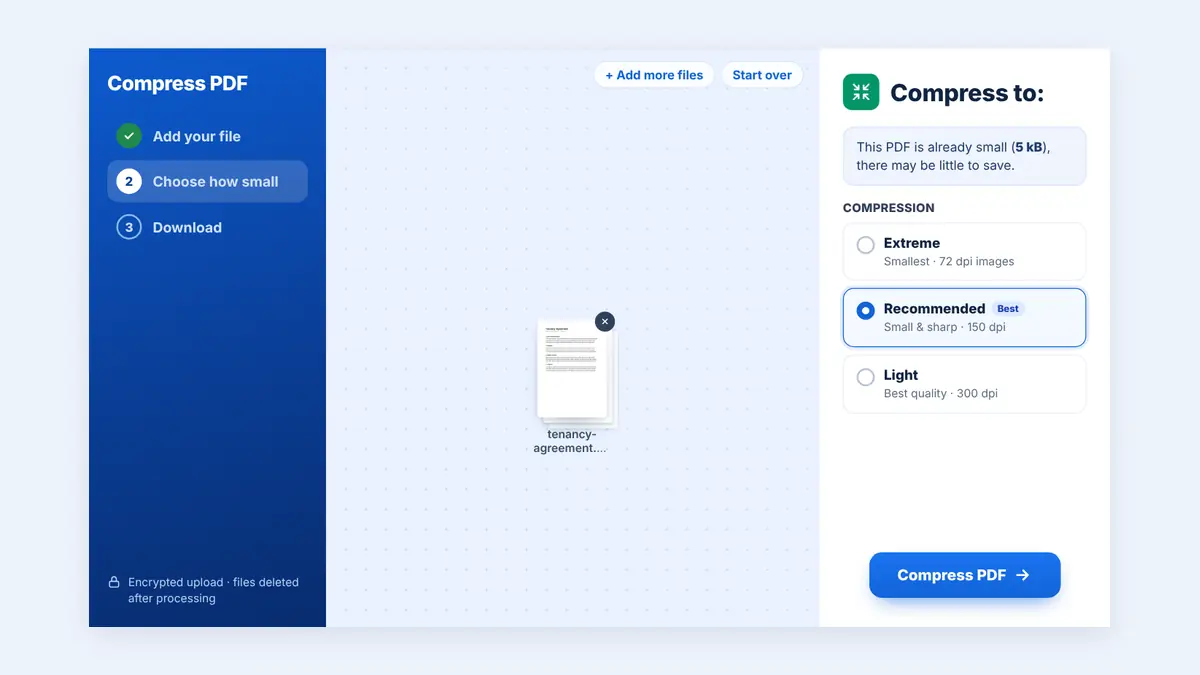
HuntPDF offers three levels: Recommended, Extreme, and Light. If you have a choice, start with a balanced setting and increase compression only when necessary.
2. Understand the Type of PDF You Have
Not all PDFs compress equally well.
Text-based PDFs: Documents created from Word processors or office software may already use efficient text and font encoding. Their file size may not decrease significantly.
Image-heavy PDFs: Documents containing photographs, scanned pages, and large illustrations often have more opportunities for size reduction through image optimization.
Scanned PDFs: These files may contain a full-page image for every page. Compression can reduce their size, but excessive image compression may make text harder to read.
Mixed-content PDFs: Reports containing text, charts, and photographs may need a balanced approach to preserve both readability and visual detail.
3. Keep Images Readable
Images often contribute significantly to a PDF's total size. Reducing image resolution or quality can make a file smaller, but too much reduction may produce visible blur, pixelation, or compression artifacts.
Before sharing a compressed document, check photographs, diagrams, logos, charts, and other detailed images. If the document is intended for printing, preserve enough resolution for the required print quality.
4. Consider Whether You Need Printing or Screen Viewing
A PDF intended for a phone screen or email attachment may not require the same image quality as a document intended for professional printing.
For screen viewing, moderate image optimization may provide a useful balance. For printing, technical drawings, or documents containing fine detail, use a less aggressive compression setting and inspect the result carefully.
5. Compare the Original and Compressed Files
Never judge compression by file size alone. A file that is 80% smaller is not automatically better if important details have become unreadable.
Check both the size reduction and the final document quality before deciding which version to keep.
How to Compress a PDF for Free
Follow these steps to reduce your PDF file size.
Step 1: Open HuntPDF
Visit HuntPDF.com and find the PDF compression tool.
Step 2: Upload Your PDF
Select the PDF file you want to reduce. Before uploading, make sure you have chosen the correct document and that it does not contain information you should not send to an online service.
Step 3: Choose the Available Compression Option
Select the level that fits your needs: Recommended for most files, Extreme for the smallest size, or Light for the best quality. A balanced option is a sensible starting point for general use.
Step 4: Process the File
Start compression and wait for the tool to finish processing your document.
Step 5: Download and Review
Download the compressed PDF and compare it with the original. Check important text, images, charts, page layouts, and signatures where applicable.
If the document is still too large, consider another compression level. If its quality has decreased too much, try a less aggressive setting.
How Much Can You Reduce a PDF File?
There is no universal compression percentage that works for every PDF. The following examples are illustrative only, not guaranteed results.
| Original file size | Illustrative compressed size | Reduction |
|---|---|---|
| 10 MB | 7 MB | 30% |
| 20 MB | 10 MB | 50% |
| 50 MB | 20 MB | 60% |
Your actual results may be much better or worse. Text-heavy PDFs may shrink only slightly, while image-heavy files may offer greater opportunities for compression.
To calculate the reduction percentage, subtract the compressed size from the original size, divide the difference by the original size, and multiply by 100.
For example, reducing a 20 MB PDF to 10 MB represents a 50% reduction in file size.
Common PDF Compression Mistakes to Avoid
Compressing Too Aggressively
Very strong image compression may reduce readability. Always check small text and detailed graphics after processing.
Assuming Every PDF Will Shrink Significantly
Already optimized PDFs may have little unnecessary data to remove. A small reduction does not necessarily indicate a problem with the compressor.
Ignoring the Intended Use
A file suitable for screen viewing may not be suitable for printing. Select compression based on how the document will be used.
Replacing the Original File
Keep a copy of the original until you have confirmed that the compressed version meets your requirements.
Forgetting Confidentiality
Before uploading sensitive business, financial, legal, or personal documents, review the service's privacy and file-deletion policies. Do not assume every online tool handles files in the same way.
Frequently Asked Questions
What is the best free PDF compressor?
The best PDF compressor depends on your requirements. Look for a tool that provides sufficient size reduction, preserves readability, works with your device, and clearly explains its privacy practices and usage limits.
Does compressing a PDF reduce quality?
It can. Some compression methods reduce image quality, while others optimize the document with little visible change. The result depends on the original PDF and the compression method used.
How can I compress a PDF without losing quality?
Start with a less aggressive compression setting, preserve image resolution where possible, and compare the compressed file with the original. Some PDFs can be optimized with little visible quality loss, but zero-loss compression cannot guarantee a substantial reduction in every file.
Can I compress a PDF for email?
Yes. PDF compression can help bring a large attachment within an email service's file-size limit. Check the actual attachment limit and remember that email encoding can increase the transmitted size slightly.
Why is my PDF still large after compression?
The document may already be optimized, or its size may come mainly from high-resolution images, scanned pages, embedded resources, or other content that is difficult to reduce without affecting quality.
Can I compress a PDF on my phone?
Yes. Browser-based PDF compression tools can work on compatible smartphones and tablets. Upload your document, process it, and download the result using your browser.
Is an online PDF compressor safe?
Safety depends on the service's security controls, privacy practices, and file-retention policies. Review these details before uploading confidential documents.
Conclusion
A free PDF compressor can make documents easier to email, upload, store, and share. The key is to balance file-size reduction with the quality your document requires.
Start with an appropriate compression level, check the result carefully, and keep the original until you are satisfied. A smaller PDF is useful only when it still serves its intended purpose.
Visit HuntPDF.com to explore PDF tools designed to make everyday document management simpler.
Free HuntPDF tools for this task
- Free PDF compressor: choose Light, Recommended or Extreme
- Black and white PDF: cut size for text-only files
- Split very large PDFs: send big files in parts
- HuntPDF.com: every free PDF and image tool in one place, with no sign-up and no watermark
Related guides: How to compress a PDF without losing quality · How to shrink a PDF for upload limits


Comments
Post a Comment