How to Combine PDF Files in the Right Order
How to Combine PDF Files in the Right Order
Combining multiple PDF files into one document is easy, but keeping every page in the correct order is essential. Whether you are organizing business reports, merging invoices, preparing study notes, or submitting official documents, the right page sequence makes your final PDF easier to read and share.
With HuntPDF, you can combine PDF files online and organize your documents into a single file without installing additional software.
Why Is the Order of PDF Files Important?
When you merge several PDF documents, their order determines how the final document reads. If the files are arranged incorrectly, information may appear out of sequence or important pages may become difficult to find.
Correct ordering is particularly important for:
Business reports: Keep summaries, financial statements, and supporting schedules in sequence.
Invoices and receipts: Arrange documents by date or transaction number.
Contracts: Place agreements, appendices, and signature pages in the appropriate order.
Educational materials: Organize chapters, lecture notes, and assignments logically.
Applications: Keep forms, identification documents, and supporting evidence in the required sequence.
Taking a moment to arrange your files before merging can save time and prevent mistakes later.
How to Combine PDF Files in the Right Order
Follow these simple steps to create one organized PDF document.
Step 1: Prepare Your PDF Files
Before uploading your documents, decide the order in which they should appear. You might arrange them chronologically, by chapter, by document type, or according to the requirements of the person receiving them.
For example, a business report might follow this sequence:
Cover page
Executive summary
Financial statements
Supporting schedules
Appendices
Give your files clear names if necessary, such as 01-Cover.pdf, 02-Summary.pdf, and 03-Statements.pdf. Numbering files can make them easier to identify, although you should still check their order in the merging tool.
Step 2: Open the HuntPDF Merge PDF Tool
Visit HuntPDF.com and open the Merge PDF tool.
Upload the PDF files you want to combine. Make sure you select every required document before starting the process.
Step 3: Arrange the Files in the Correct Sequence
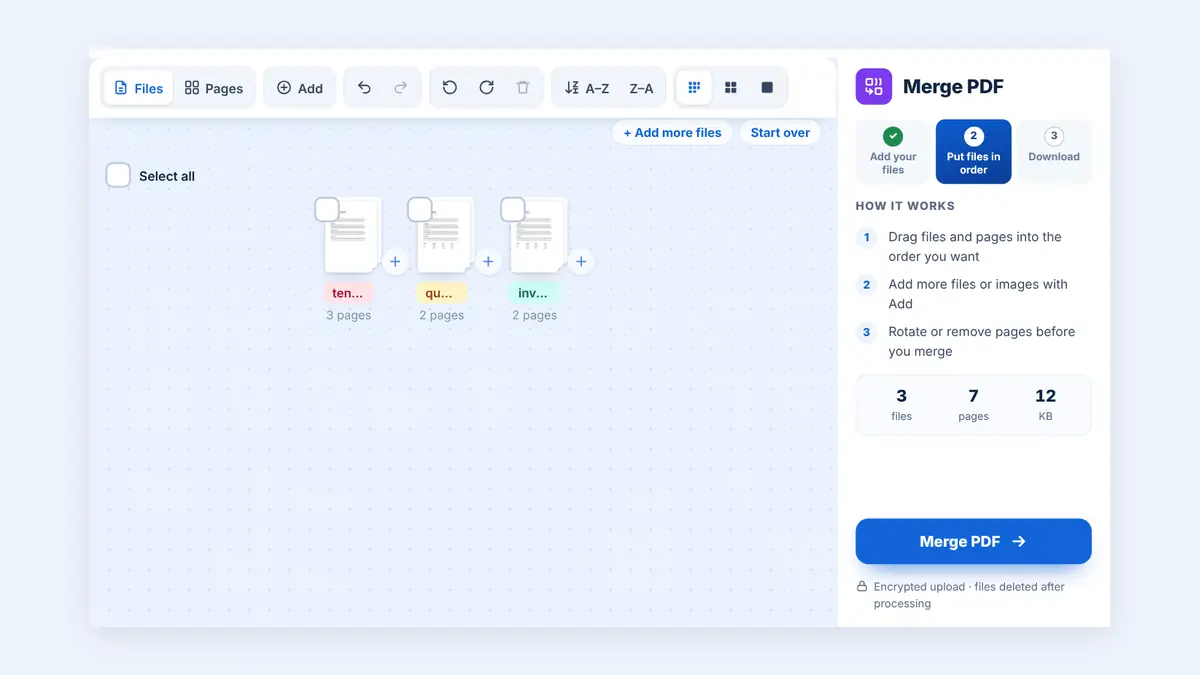
Check the order of the uploaded files. Drag each file card into the position you want.
For example, if you have three documents named Introduction.pdf, Chapter 1.pdf, and Chapter 2.pdf, arrange them in that sequence before merging.
Do not assume that files will automatically appear in the correct order simply because you selected them together. Always review the displayed sequence.
Step 4: Merge the PDF Files
Once you have confirmed the file order, start the merging process. The tool combines the selected documents into one PDF, preserving the sequence you arranged.
Wait for processing to finish before downloading the result.
Step 5: Download and Check the Final PDF
Open the merged document and review it from beginning to end. Check the following:
The cover page appears first.
Chapters and sections follow the intended sequence.
No documents or pages are missing.
Tables, images, and page layouts remain readable.
Signature pages and appendices appear in the correct locations.
If you notice an ordering mistake, rearrange the original files and merge them again.
Tips for Keeping PDF Pages in the Right Order
Use a Consistent Naming System
Numbering files before uploading them can reduce confusion. For example, use 01-Introduction.pdf, 02-Report.pdf, and 03-Appendix.pdf.
Arrange Documents Before Uploading
Deciding the sequence in advance is especially helpful when merging a large number of files.
Check Page Numbers
If the original documents contain page numbers, check whether the numbering remains logical after merging. You may need a separate PDF page-numbering tool if you want continuous numbering throughout the final document.
Keep a Backup of the Original Files
Save the original documents until you have verified the merged PDF. This makes it easier to correct mistakes without recreating your files.
Choose the Right PDF Tool
Merging combines documents, while splitting separates pages and reordering changes page sequence. Use the appropriate tool for the task you need to complete.
Common Mistakes to Avoid
Relying entirely on alphabetical order: File names may not reflect the sequence required for your document.
Forgetting supporting documents: Check that every required appendix, attachment, or evidence file is included.
Skipping the final review: A successful merge does not necessarily mean the documents are in the correct order.
Confusing file order with page order: Arranging whole PDF files is different from moving individual pages within a document. If individual pages need to be rearranged, use a page-organizing tool that supports that function.
Frequently Asked Questions
How can I combine PDF files in a specific order?
Upload the required files to a PDF merging tool, drag them into the right sequence, merge them, and check the final document.
Can I combine PDF files for free?
Yes. You can combine documents for free with HuntPDF's online Merge PDF tool. Check the tool page for its current file-size and usage conditions.
Will merging PDFs reduce their quality?
Learn how to combine PDF files in the right order. Follow simple steps to arrange documents, merge PDFs online, and check your final file with HuntPDF.
Merging generally combines the existing pages without requiring image compression. However, results can depend on the tool and the source documents. Review the final PDF to confirm that text and images remain clear.
Can I change the order after merging?
Yes. You can usually rearrange the individual pages using a PDF page organizer, or reorder the original files and merge them again.
Can I merge PDFs on my phone?
Yes. Browser-based PDF tools can work on compatible smartphones and tablets. Upload your files, drag them into order, and download the merged document.
What is the difference between merging and reordering PDFs?
Merging combines two or more PDF files into one document. Reordering changes the sequence of files or individual pages. You may need both operations to create the final document you want.
Conclusion
Combining PDF files in the right order helps you create professional, readable documents for work, education, and everyday use. Prepare your files, arrange them carefully, merge them, and review the finished document before sharing it.
Visit HuntPDF.com to explore online PDF tools and make document management simpler.
Free HuntPDF tools for this task
- Combine PDF files: drag files into order and merge
- Reorder pages after merging: fix any page that landed in the wrong place
- Add page numbers: number the combined document
- HuntPDF.com: every free PDF and image tool in one place, with no sign-up and no watermark
Related guides: How to merge PDF files online · How to add page numbers to a PDF


Comments
Post a Comment