How to Add Page Numbers to a PDF Online
Page numbers make long PDFs much easier to use. Reviewers can say "see page 14" instead of describing where something is, printed copies stay in order, and tables of contents actually work. Yet many PDFs, especially ones combined from several files or scanned pages, arrive with no numbers at all.
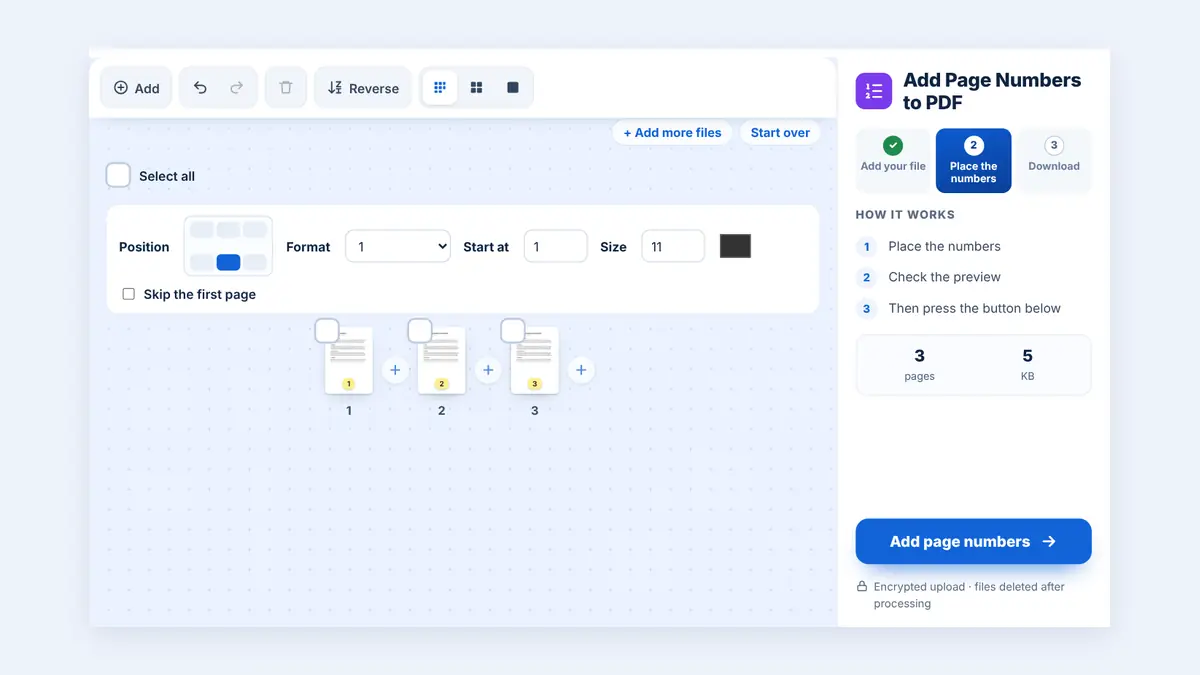
This guide shows you how to add page numbers to a PDF online and how to handle common situations such as cover pages and documents made from several files.
When Do PDFs Need Page Numbers?
- Reports and proposals: readers can refer to exact sections in meetings.
- Legal and business documents: contracts and appendices are easier to check when every page is numbered.
- Academic work: theses and assignments often require numbered pages.
- Scanned paperwork: numbers help confirm that no page went missing during scanning.
Prepare the Document First
Page numbers should be the last step, because they are added to the pages in their current order. Before numbering:
- If your content is spread across several files, merge all the files into one PDF first so the numbering runs continuously.
- Check the page order and move, rotate, or remove pages where needed.
- Decide whether the cover page should be counted.
How to Add Page Numbers to a PDF Online
Step 1: Open the tool
Use a free tool to add page numbers to your PDF directly in your browser.
Step 2: Upload your PDF
Select the finished document from your device.
Step 3: Choose the position
The bottom centre is the most common choice. Bottom right works well for documents that will be printed and bound on the left. Avoid positions that overlap footers, logos, or signatures.
Step 4: Choose the style and starting number
Pick a simple format such as "1", "Page 1", or "1 of 20". If your document continues from another part, set the starting number to match.
Step 5: Download and review
Open the result and check a few pages, especially the first and last, to make sure the numbers are readable and do not cover any content.
Handling Cover Pages
Many documents should not show a number on the cover. Common approaches are:
- Number the main document on its own, then merge the cover in front of it. The cover stays clean and the first content page shows 1.
- If the cover should still be counted, number the whole document and accept that the cover carries number 1, or check whether your tool lets you skip the first page.
Choose the approach that matches any table of contents in your document, so the page references stay accurate.
Tips for Clean Page Numbers
- Use a font size similar to the body text so numbers are visible but not distracting.
- Keep a margin from the page edge so numbers are not cut off when printing.
- Number the final version only. If you add pages later, re-number from the original file.
Frequently Asked Questions
Can I add page numbers to a scanned PDF?
Yes. Page numbers are added on top of each page, so they work on scanned documents too.
Will adding numbers change the rest of the document?
No. The original content stays the same; only the numbers are added.
Can I remove page numbers later?
It is much easier to keep an unnumbered copy and re-number it than to remove numbers from a finished file.
Conclusion
Merge your files, fix the page order, then add numbers as the final step. A few seconds of preparation gives you a professional document that is easy to read, print, and discuss.
Free HuntPDF tools for this task
- Add page numbers to a PDF: six positions and any start number
- Merge PDF files: combine parts before numbering
- Organize PDF pages: fix the page order first
- HuntPDF.com: every free PDF and image tool in one place, with no sign-up and no watermark
Related guides: How to combine PDF files in the right order · How to merge PDF files online


Comments
Post a Comment