PDF to Word: Convert PDF to an Editable DOCX for Free
PDF files are ideal for sharing documents while maintaining a consistent page layout. However, editing text, updating tables, or correcting mistakes in a PDF can be difficult. Converting a PDF to Word makes it easier to work with the document's content using an editable word processor.
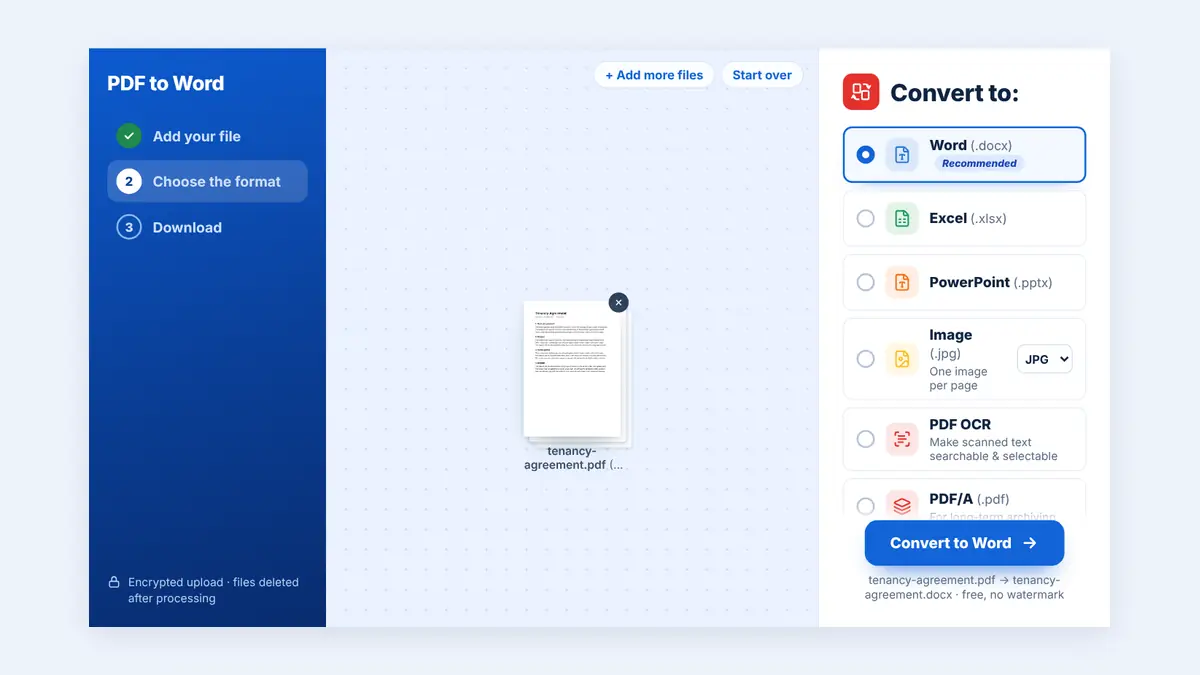
Not every PDF converts in the same way. Some files contain selectable text, while others are scanned images. The conversion method you choose can affect formatting, images, tables, and the amount of editing required afterward.
In this guide, you will learn about the different PDF to Word conversion options, how they work, and how to choose the right method for your document.
What Does PDF to Word Conversion Mean?
PDF to Word conversion changes a Portable Document Format file into an editable document format, such as DOCX.
The goal is to make the content easier to edit while preserving as much of the original formatting as possible.
After conversion, you may be able to:
Edit paragraphs and headings.
Correct spelling mistakes.
Update tables and figures.
Add or remove content.
Reuse text in another document.
Change fonts, margins, and page layouts.
The results depend on the structure of the original PDF and the conversion technology used. A simple text document is generally easier to convert than a complex report containing multiple columns, scanned pages, or detailed graphics.
What Are Your PDF to Word Conversion Options?
Different documents require different conversion approaches. Understanding the main options helps you choose the most suitable one.
1. Convert a Text-Based PDF to Word
A text-based PDF contains selectable text rather than only images of printed pages.
This type of file is often the easiest to convert because the software can extract existing text and reconstruct an editable document.
Best for:
Business reports
Letters and contracts
Text-based invoices
Articles and research papers
Documents originally created in Word
Formatting may still change during conversion, particularly when the document contains complex tables, text boxes, or multiple columns.
2. Convert a Scanned PDF Using OCR
A scanned PDF may look like a normal document, but its pages can consist entirely of images. In this case, a converter may not be able to extract editable text directly.
Optical character recognition (OCR) analyzes the images and identifies letters, numbers, and words. The recognized text can then be used to create an editable document.
Best for:
Scanned contracts
Printed reports
Paper forms saved as PDFs
Older documents without original digital files
OCR accuracy depends on scan quality, resolution, language, handwriting, and document condition. Always review the converted text for errors, especially names, dates, financial figures, and legal terms.
3. Convert PDFs With Complex Formatting
Some PDFs contain tables, columns, charts, images, headers, footers, and footnotes. These elements make conversion more challenging because the software must reconstruct the document's structure.
The converted Word file may require manual adjustments to:
Table widths and alignment
Page breaks and margins
Image placement
Headers and footers
Font sizes and paragraph spacing
For these documents, choose a conversion option that aims to preserve layout, then inspect the output carefully.
4. Extract Text Instead of Preserving the Original Layout
Sometimes you need the information in a PDF rather than an exact reproduction of its appearance.
Text extraction can be useful when you want to reuse paragraphs, research material, or written content in another document.
However, extracted text may not retain the original tables, images, columns, or page formatting. This option is best when editable content matters more than visual similarity.
How to Convert PDF to Word Online With HuntPDF
An online converter can help you convert documents without installing separate desktop software.
Follow these general steps:
Step 1: Open HuntPDF
Visit HuntPDF.com and locate the PDF to Word conversion tool.
Step 2: Upload Your PDF
Select the document you want to convert. If the file contains sensitive information, review the service's privacy and file-retention policies before uploading it.
Step 3: Start the Conversion
Follow the instructions on the tool page to process your document.
Step 4: Download the Word Document
When processing is complete, download the converted Word file (.docx).
Step 5: Review and Edit the Result
Open the document in a compatible word processor and check the text, tables, images, and page layout.
Correct any formatting problems before using or sharing the file.
How to Choose the Right Conversion Method
Use the following guide to identify the most suitable approach.
| Your document | Recommended option |
|---|---|
| Simple document with selectable text | Standard PDF to Word conversion |
| Scanned pages or image-only PDF | OCR-enabled conversion |
| Report with tables and images | Layout-preserving conversion |
| Text needed for reuse | Text extraction |
| Contract or financial document | Conversion followed by careful verification |
If the PDF contains important legal or financial information, never assume the converted document is identical to the original. Verify every critical detail before making changes or relying on the result.
Common Problems During PDF to Word Conversion
Formatting Changes
Fonts, spacing, and page breaks may shift during conversion. Check the document's page layout and make corrections in Word.
Missing or Misread Text
Scanned documents and low-quality PDFs may produce incomplete or incorrect text. OCR results should always be reviewed.
Tables Become Disorganized
Complex tables may lose their original column widths or alignment. Adjust the table structure after conversion.
Images Move or Disappear
Images may shift position or interact differently with surrounding text. Review image placement and text wrapping.
Password-Protected PDFs
Some protected files may require a password or permission to convert. Only convert documents you are authorized to access, and follow the file's applicable restrictions.
Tips for Getting Better PDF to Word Results
Use the highest-quality source file available. Clear text and sharp scans improve conversion results.
Check whether text is selectable. If you cannot select the text in your PDF viewer, the file may require OCR.
Avoid unnecessary repeated conversions. Keep the original PDF and use it whenever you need to start the conversion again.
Use standard fonts and layouts when creating the original file. Simple formatting is generally easier to reproduce accurately.
Review important information carefully. Pay particular attention to numbers, dates, formulas, tables, and names.
Keep the original PDF. It provides a reference for checking the converted Word document and restoring any missing information.
Frequently Asked Questions
Can I convert a PDF to Word for free?
Some online tools provide free PDF to Word conversion. HuntPDF accepts PDFs up to 260 MB, with no sign-up and no watermark.
Will converting PDF to Word preserve formatting?
It may preserve much of the original formatting, particularly for simple text-based PDFs. Complex layouts, scanned pages, and detailed tables may require manual corrections.
Can I convert a scanned PDF to an editable Word document?
Yes, if you use an OCR-enabled conversion process. OCR recognizes text within page images and makes it editable, although the results may contain errors that require correction.
What is the difference between PDF and DOCX?
PDF is designed to preserve a document's presentation across compatible viewers and devices. DOCX is an editable word-processing format that allows users to change text, tables, images, and other content.
Why does my converted Word file look different?
The conversion software may interpret fonts, spacing, tables, images, and page breaks differently from the original document. Complex layouts may need manual adjustments.
Can I convert PDF to Word on my phone?
Yes. Compatible online conversion tools can work through a mobile browser. You can upload a PDF, convert it, and download the Word document on a phone or a computer.
Is it safe to convert a PDF online?
Safety depends on the service's security controls, privacy practices, and file-retention policies. Review these details before uploading confidential documents.
Conclusion
PDF to Word conversion makes it easier to edit, reuse, and update document content. The best conversion option depends on whether your PDF contains selectable text, scanned images, or complex formatting.
Choose the method that suits your document, review the converted file carefully, and keep the original PDF as a reference. With the right approach, you can make document editing easier while reducing formatting problems.
Visit HuntPDF.com to explore online PDF tools and simplify your document workflow.
Free HuntPDF tools for this task
- Convert PDF to Word: editable DOCX for Word and Google Docs
- OCR scanned PDFs: turn scans into real text first
- Convert Word to PDF: send the finished document as PDF
- HuntPDF.com: every free PDF and image tool in one place, with no sign-up and no watermark
Related guides: How to make a scanned PDF searchable · How to convert documents without breaking the layout


Comments
Post a Comment