How to Make a Scanned PDF Searchable with OCR
A scanned PDF looks like a normal document, but to your computer it is just a set of pictures. You cannot search it, select a sentence, or copy a figure into a spreadsheet. OCR (optical character recognition) fixes this by reading the text in the images and adding real, selectable text to the file.
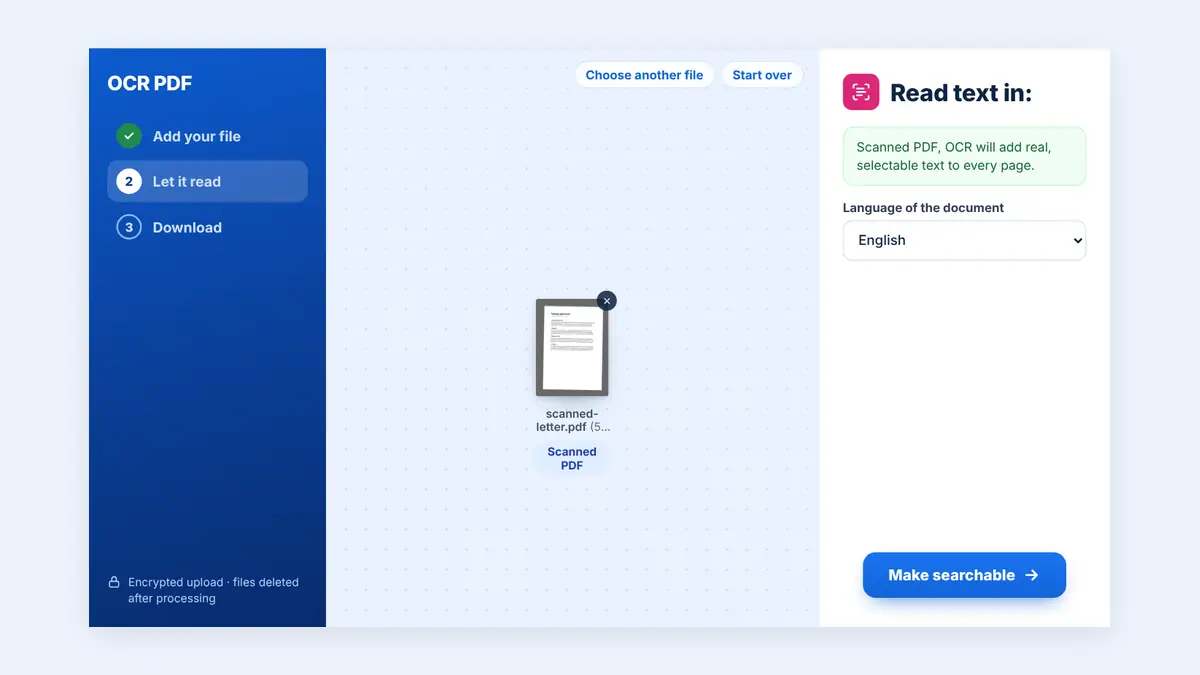
This guide explains how OCR works, how to make a scanned PDF searchable online, and how to get the most accurate results.
How to Tell If Your PDF Needs OCR
- Press Ctrl+F (or Cmd+F) and search for a word you can see. If nothing is found, the page is an image.
- Try to select a line of text. If you can only select the whole page as a picture, it needs OCR.
- The document came from a scanner, a phone camera app, or a fax.
What OCR Does to a PDF
OCR software analyses the shapes of letters on each page and converts them into text. A good OCR tool places that text in an invisible layer behind the page image. The document looks exactly the same, but now you can search it, highlight it, and copy from it.
How to Make a Scanned PDF Searchable
Step 1: Open an OCR tool
You can make a scanned PDF searchable with OCR directly in your browser, without installing software.
Step 2: Upload the scanned PDF
Choose the file from your device or cloud storage.
Step 3: Choose the document language
Selecting the correct language matters. OCR uses language rules to recognise words, so a French document read as English will produce more mistakes. HuntPDF supports English, Arabic, French, German, Spanish, Portuguese, and Chinese.
Step 4: Process and download
Every page is read, so larger documents take a little longer. Download the searchable PDF when it is ready.
Step 5: Test the result
Search for a few words and copy a paragraph to check the accuracy.
Tips for Better OCR Accuracy
- Scan at good resolution: 300 DPI is a reliable standard for text documents.
- Keep pages straight: tilted scans reduce accuracy, so straighten or rotate pages first.
- Use good lighting: when photographing documents, avoid shadows and glare.
- Prefer clean originals: handwriting, stamps, and faded print are harder to read.
What to Do After OCR
Once your PDF has real text, more options open up. If you need to edit the content, convert the searchable PDF to Word. If you only need the words, for example to paste into an email or another system, you can extract plain text from the PDF.
Common Uses for OCR
- Finding every mention of a clause in a scanned contract.
- Copying figures from scanned invoices and statements instead of retyping them.
- Making archived paper records searchable.
- Helping screen readers read scanned documents aloud.
Frequently Asked Questions
Is OCR 100% accurate?
No. Clear printed text is usually recognised very well, but always check important numbers, names, and dates.
Does OCR change how my PDF looks?
No. The page image stays the same; a hidden text layer is added behind it.
Can OCR read handwriting?
Results with handwriting vary a lot. OCR works best on printed text.
Conclusion
OCR turns a scanned PDF from a stack of pictures into a document you can search, select, and reuse. Scan cleanly, choose the right language, and check the result before relying on it.
Free HuntPDF tools for this task
- OCR PDF online: make scanned PDFs searchable
- PDF to Word: edit the recognised text
- PDF to text: copy plain text out of a PDF
- HuntPDF.com: every free PDF and image tool in one place, with no sign-up and no watermark
Related guides: How to convert PDF to Word · How to rotate sideways PDF scans


Comments
Post a Comment