Rotate PDF Pages Online: Fix Sideways and Upside-Down Scans
Scanned PDF documents do not always appear in the correct direction. A page may be sideways, upside down, or rotated differently from the other pages in the same file. This can make documents difficult to read, print, and share.
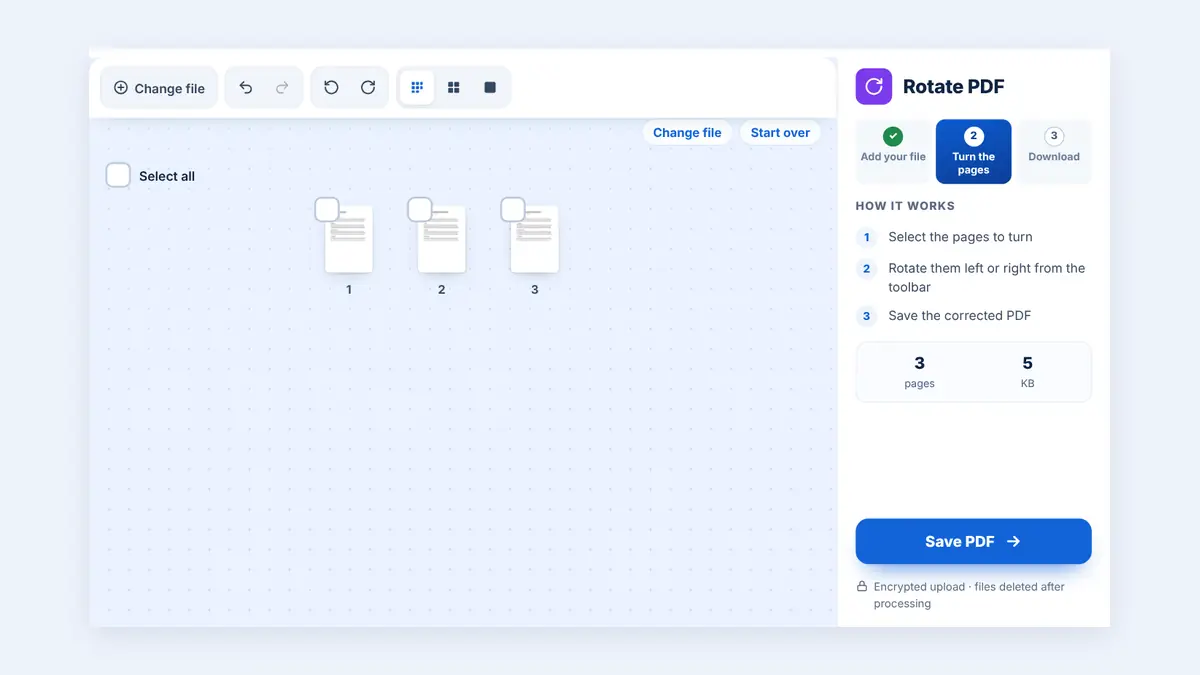
Fortunately, you can rotate misaligned PDF pages without scanning the documents again. In this guide, you will learn how to correct page orientation, fix individual scanned pages, and prepare a clean PDF for everyday use.
Why Do PDF Scans Become Misaligned?
Misaligned pages are common when scanning paperwork, combining documents from different sources, or converting images into PDFs.
Some common causes include:
Incorrect scanner orientation: A page may be placed sideways or upside down on the scanner.
Mixed document layouts: A file may contain both portrait and landscape pages.
Phone scanning errors: Mobile scanning applications may incorrectly detect the direction of a document.
Combined PDF files: Documents scanned separately may have different page orientations.
Incorrect image rotation: Photographs or scanned images may have been rotated before being converted into a PDF.
Rotating the affected pages can make the document easier to read without changing the order of the pages.
How to Rotate Misaligned Scans in a PDF Online
An online PDF rotation tool can help you correct page orientation without installing desktop software.
Step 1: Open Your PDF File
Visit HuntPDF.com and open the Rotate PDF tool.
Choose the PDF containing the misaligned scans. Before uploading, confirm that you have selected the correct document.
Step 2: Review the Page Thumbnails
Once the PDF loads, inspect the page thumbnails to identify the pages that need correction.
Look for pages that are sideways, upside down, or facing a different direction from the surrounding pages.
Step 3: Select the Pages to Rotate
Click the pages that need turning. You can select one page or several. If several pages share the same orientation problem, check whether the tool offers a rotate-all or multi-page option.
Be careful not to rotate pages that are already correct.
Step 4: Rotate the Pages
Press rotate left or rotate right. Each press turns the selected pages by 90 degrees.
For example, a page displayed sideways may need a 90-degree rotation, while an upside-down page may need a 180-degree rotation.
Step 5: Apply the Changes and Download
Apply the rotation and process the PDF. Download the corrected file when it is ready.
Open the resulting document and check every page to confirm that the text is upright and the pages appear in the correct order.
How to Fix Different PDF Page Orientation Problems
The appropriate rotation depends on how the page appears.
| Problem | Typical correction |
|---|---|
| Page is sideways to the right | Rotate 90 degrees counterclockwise |
| Page is sideways to the left | Rotate 90 degrees clockwise |
| Page is upside down | Rotate 180 degrees |
| One page differs from the rest | Rotate only that page |
| Portrait and landscape pages are mixed | Correct each page according to its intended layout |
These directions assume the usual viewer orientation. Check the result after rotating, as the required direction can vary depending on how the page was originally scanned.
How to Rotate Only Certain Pages in a PDF
Sometimes a document contains just one or two misaligned pages. Rotating the entire file may create more problems than it solves.
For example, imagine a 20-page financial report in which pages 7 and 14 are sideways. If your PDF tool supports individual page rotation, select only those two pages and rotate them while leaving the remaining pages unchanged.
Before saving, review the page thumbnails and confirm that the changes affect only the intended pages.
Does Rotating a PDF Reduce Image Quality?
Rotating a PDF page generally changes its displayed orientation rather than requiring you to rescan the document. A page-rotation operation usually does not require re-encoding the scanned image, although the exact behavior depends on the software.
To preserve quality:
Use the original PDF rather than a screenshot of the document.
Avoid converting the pages into new images unless necessary.
Do not apply unnecessary compression during processing.
Check small text, signatures, stamps, and other important details after rotation.
If the original scan is blurry, rotation will not improve its resolution.
What Is the Difference Between Rotating and Straightening a PDF?
Rotating a PDF page corrects its overall orientation. Straightening, sometimes called deskewing, corrects a page that is slightly tilted.
For example, if a scanned document is completely sideways, rotation is usually the right solution. If the page is upright but the text lines slope slightly, you may need a deskewing tool instead.
These operations solve different problems, so choose the one that matches your document.
Common PDF Rotation Problems and Solutions
The whole document rotates instead of one page: Check whether your tool supports page-level rotation and select the individual page before applying the change.
A page becomes upside down: Apply another 180-degree rotation to correct it.
The page looks correct in the thumbnail but wrong after downloading: Open the downloaded PDF in another viewer and check whether the rotation was saved correctly.
Landscape pages look incorrect: Landscape pages may be intentional. Confirm the original layout before changing their orientation.
The scan is still tilted after rotation: Use a deskew or straighten feature if available. Rotation alone does not correct small angular tilts.
The text is still difficult to read: The problem may be low scan resolution, blur, or poor contrast rather than page orientation.
Is It Safe to Rotate PDF Files Online?
Before uploading a PDF, consider whether it contains confidential information. Scanned contracts, identification documents, bank statements, and business records may contain sensitive details.
Review the online service's privacy policy and file-handling practices before processing confidential files. For highly sensitive documents, consider using trusted offline software.
Keep a copy of the original document until you have verified the corrected PDF.
Frequently Asked Questions
Can I rotate one page in a PDF without rotating the others?
Yes, if the PDF tool supports individual page rotation. Select the affected page and rotate it separately.
Can I rotate a scanned PDF without rescanning it?
Yes. A PDF rotation tool can usually correct page orientation without requiring you to scan the original document again.
Can I rotate a PDF by 90 or 180 degrees?
Yes. Most PDF rotation tools use 90-degree increments, allowing you to correct sideways or upside-down pages.
Will rotating a PDF change the page order?
Rotating a page normally changes its orientation rather than its position in the document. Nevertheless, review the final file to ensure the page order remains correct.
Can I rotate a PDF on my phone?
Yes. You can use a compatible mobile PDF application or browser-based tool, depending on the features supported.
Does rotating a PDF make scanned text searchable?
No. Rotation changes the page orientation but does not automatically recognize text inside a scanned image. If you need searchable text, use OCR software.
Conclusion
Rotating misaligned scans makes PDF documents easier to read, print, and share. Identify the affected pages, choose the correct rotation direction, and check the final document before sending it to anyone.
Visit HuntPDF.com to rotate, organize, and fix PDF pages for free.
Free HuntPDF tools for this task
- Rotate PDF pages online: turn sideways pages the right way up
- Reorder PDF pages: drag pages into the right order
- Make scanned PDFs searchable: add selectable text with OCR
- HuntPDF.com: every free PDF and image tool in one place, with no sign-up and no watermark
Related guides: How to organize PDF pages · How to make a scanned PDF searchable


Comments
Post a Comment