Organize PDF Pages Online: Reorder, Rotate and Delete Pages
Sharing a PDF document is easy, but sending a file with pages in the wrong order, unnecessary sections, or missing information can create confusion. Whether you are preparing a business report, school assignment, invoice, contract, or presentation, organizing your PDF pages before sharing helps make your document clear and professional.
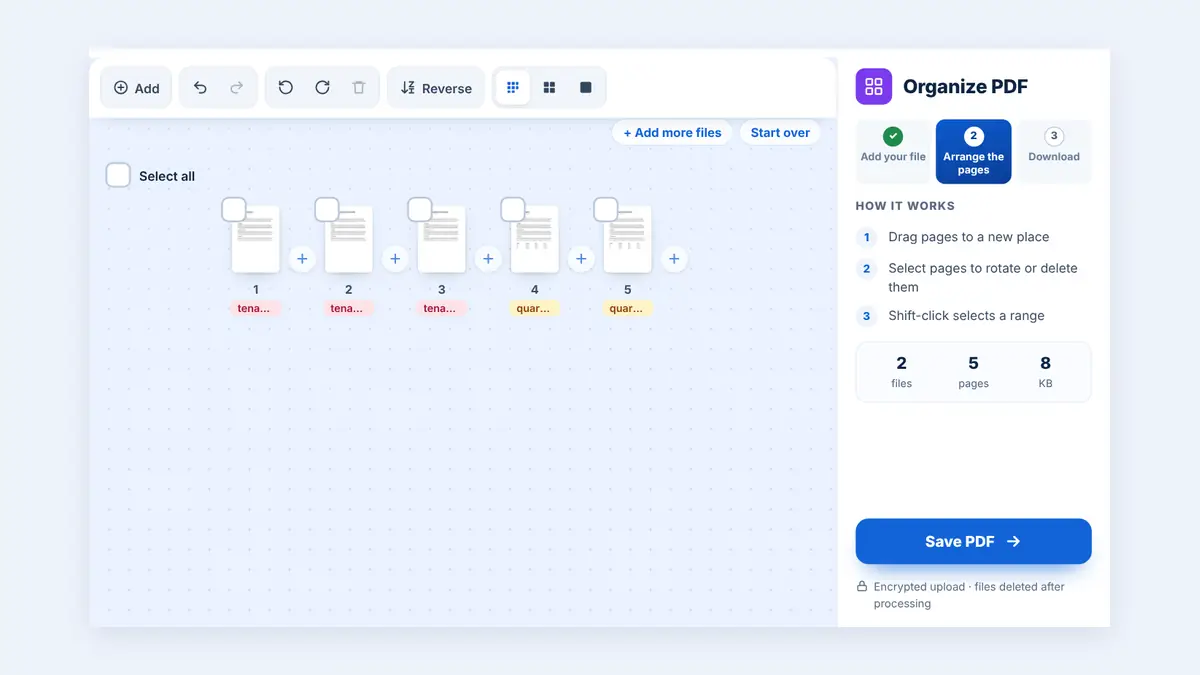
With HuntPDF, you can organize PDF pages online and prepare your documents for sharing without installing additional software.
Why Should You Organize PDF Pages Before Sharing?
A well-organized PDF makes information easier to read and helps recipients find important details quickly. Before sending your document, consider checking the following:
Page order: Make sure the pages follow the correct sequence.
Unnecessary pages: Remove blank pages or sections that are not needed.
Missing information: Check that all required pages are included.
Document flow: Arrange the content so it follows a logical order.
Professional presentation: Ensure the final document is easy to navigate and understand.
These simple checks can help you avoid mistakes when sending important documents to clients, colleagues, teachers, or business partners.
How to Organize PDF Pages Online
You do not need complicated software to prepare a PDF for sharing. Follow these simple steps.
Step 1: Open the PDF Organizer
Visit the HuntPDF Organize PDF tool to start arranging your document pages online.
Step 2: Upload Your PDF File
Select the PDF document you want to organize from your computer or device. Make sure you choose the correct file before proceeding.
Step 3: Arrange the Pages
Look through the page thumbnails and drag pages into the correct order. Place the introduction first, followed by the main content and supporting documents, where appropriate.
For example, a business report might follow this order:
Cover page
Executive summary
Main report
Supporting documents
Appendix
Your ideal page order will depend on the type of document you are preparing.
Step 4: Review Your Document
Before saving, check the page sequence carefully. Confirm that important information appears in the correct place and that no necessary pages are missing.
Step 5: Download and Share
Once the pages are in order, press Save PDF and download the new document. Open the final file to confirm that everything looks correct before attaching it to an email or sharing it online.
Ready to organize your document?
Use the HuntPDF Organize PDF tool to get started.
Common Situations Where PDF Page Organization Helps
Business Reports
Put summaries, financial statements, charts, and supporting information in a logical order before sending reports to managers or clients.
Contracts and Agreements
Arrange contract sections and supporting documents correctly so recipients can follow the terms and conditions more easily. Always verify the final page order before signing or sending legal documents.
Educational Documents
Organize assignments, research papers, notes, and scanned worksheets so the information follows the intended sequence.
Invoices and Financial Records
Place invoices, receipts, statements, and supporting evidence in an appropriate order to make financial records easier to review.
Applications and Official Documents
Arrange application forms, identification copies, certificates, and supporting documents according to the recipient's requirements.
Tips for Preparing a PDF Before Sharing
Follow these practical tips to make your documents more professional:
Check every page before sharing the final file.
Use a logical order that matches the document's purpose.
Remove unnecessary blank pages when appropriate.
Keep related information together.
Check page orientation and readability.
Confirm that confidential information is not included unintentionally.
Open the downloaded PDF to verify the final result.
If your document contains sensitive business, financial, or personal information, review the tool's privacy and file-handling policies before uploading it.
Organize PDF Pages with HuntPDF
Preparing a document for sharing does not have to be complicated. Organizing your pages before sending a PDF can improve readability, reduce confusion, and help you present information more professionally.
HuntPDF provides an online starting point for organizing PDF pages without needing to install desktop software.
Try it here: Organize PDF
Make your next PDF easier to read, review, and share by checking its page order before sending it.
Frequently Asked Questions
Can I organize PDF pages online?
Yes. An online PDF organizer can help you arrange pages using a web browser, subject to the features supported by the tool.
Why is page order important in a PDF?
Correct page order helps readers follow the information and find important sections without confusion.
Should I review my PDF before sharing it?
Yes. Review the page sequence, readability, missing information, and confidential content before sending the final document.
Do I need to install software to organize a PDF?
HuntPDF lets you reorder, rotate, and delete PDF pages directly in your browser, with no software to install.
What should I do after organizing my PDF?
Download the processed file, open it to check the result, and then share it through email, cloud storage, or your preferred platform. Try it here: Organize PDF
Free HuntPDF tools for this task
- Organize PDF pages: reorder, rotate and delete pages on one screen
- Rotate PDF pages: fix sideways or upside-down pages
- Delete pages from a PDF: remove blank or unwanted pages
- HuntPDF.com: every free PDF and image tool in one place, with no sign-up and no watermark
Related guides: How to combine PDF files in the right order · How to rotate sideways PDF scans


Comments
Post a Comment