How to Convert Excel to PDF Without Breaking the Layout
Sending an Excel file to a client, manager, or accountant can go wrong in small ways. Columns shift, formulas show errors on another computer, or the recipient does not have Excel at all. Converting the spreadsheet to PDF freezes the layout, so everyone sees exactly what you see.
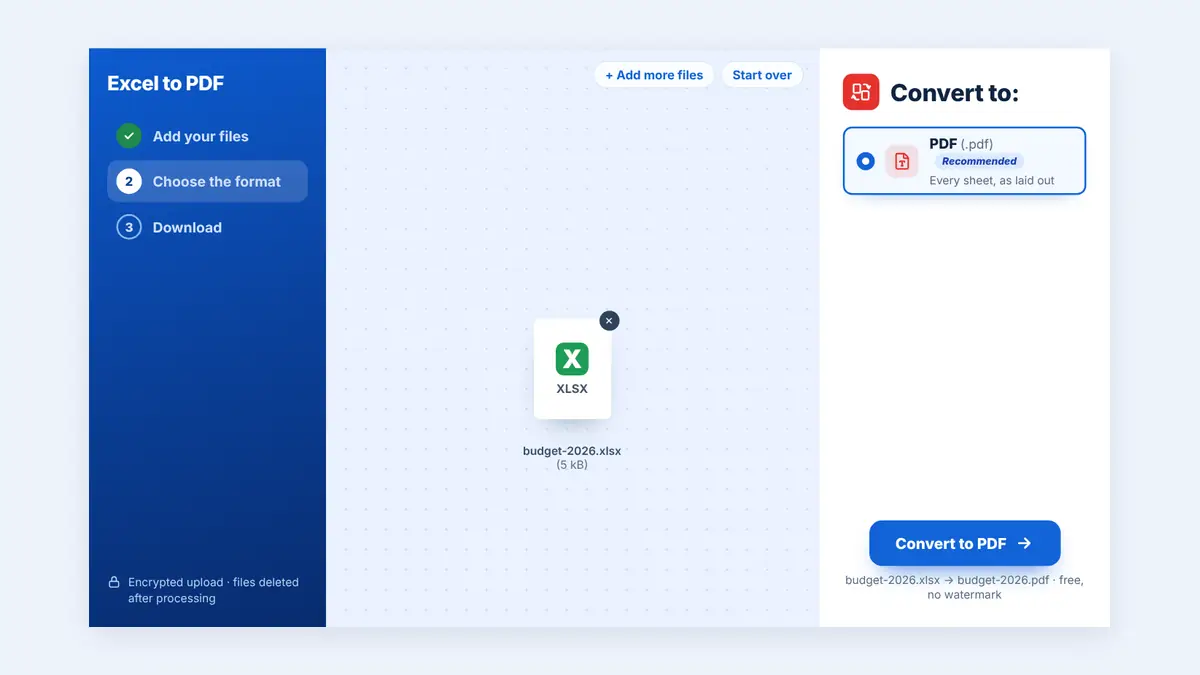
This guide explains when to send a spreadsheet as a PDF, how to convert it online, and how to prepare it so the result fits neatly on the page.
When to Send a Spreadsheet as a PDF
- Invoices and quotes: clients should not be able to change the figures.
- Financial reports: management packs and budgets look consistent and print cleanly.
- Timesheets and schedules: easy to read on phones and print for noticeboards.
- Price lists: share the final version without exposing formulas or hidden sheets.
Keep sending the Excel file when the recipient needs to work with the data, such as updating numbers or running their own analysis.
Prepare Your Spreadsheet Before Converting
A spreadsheet has no fixed page size, so a little preparation makes a big difference:
- Set the print area: only include the cells that should appear.
- Choose orientation: landscape suits wide tables with many columns.
- Fit to page width: in Page Setup, scale the sheet to fit all columns on one page wide.
- Repeat header rows: so column titles appear on every printed page.
- Hide working sheets: remove or hide tabs that are only for calculations.
- Check for errors: fix #REF! or #DIV/0! values before they appear in the PDF.
How to Convert Excel to PDF Online
Step 1: Open the converter
You can convert Excel spreadsheets to PDF in your browser. It accepts XLSX, XLS, and ODS files.
Step 2: Upload your workbook
Add one file or several workbooks at once. Each workbook becomes its own PDF.
Step 3: Convert and download
Every sheet is converted as it is laid out in the file.
Step 4: Review the pages
Check that no columns are cut off and that numbers, dates, and currency symbols display correctly.
Combining Several Reports into One File
If you converted several workbooks, such as a profit and loss statement, a balance sheet, and a cash flow report, you can combine the converted PDFs into a single report so the recipient gets one tidy file.
Going the Other Way
Sometimes you receive a table as a PDF and need the numbers back in a spreadsheet. In that case, convert the PDF table back to Excel and check the figures after conversion.
Frequently Asked Questions
Will my formulas be included in the PDF?
The PDF shows the calculated values, not the formulas. This is useful when you want to share results without revealing how they were calculated.
Why are some columns on a separate page?
The sheet is wider than the page. Use landscape orientation or scale the sheet to fit one page wide before converting.
Can I convert Google Sheets?
Download the sheet as an XLSX file first, then convert it to PDF.
Conclusion
Converting Excel to PDF protects your layout and your figures. Set the print area, fit the columns to the page, convert, and review the result before sending.
Free HuntPDF tools for this task
- Excel to PDF converter: XLSX, XLS and ODS
- PDF to Excel: get tables back into a sheet
- Merge PDFs: combine several reports into one
- HuntPDF.com: every free PDF and image tool in one place, with no sign-up and no watermark
Related guides: How to convert PDF to Excel · How to convert documents without breaking the layout


Comments
Post a Comment