PDF to Excel: Convert PDF Tables to Editable Spreadsheets
PDF files are useful for sharing reports, invoices, financial statements, and business documents. However, working with tables inside a PDF can be difficult when you need to calculate totals, sort records, filter information, or update figures. Converting a PDF to Excel makes it easier to work with tabular data in a spreadsheet.
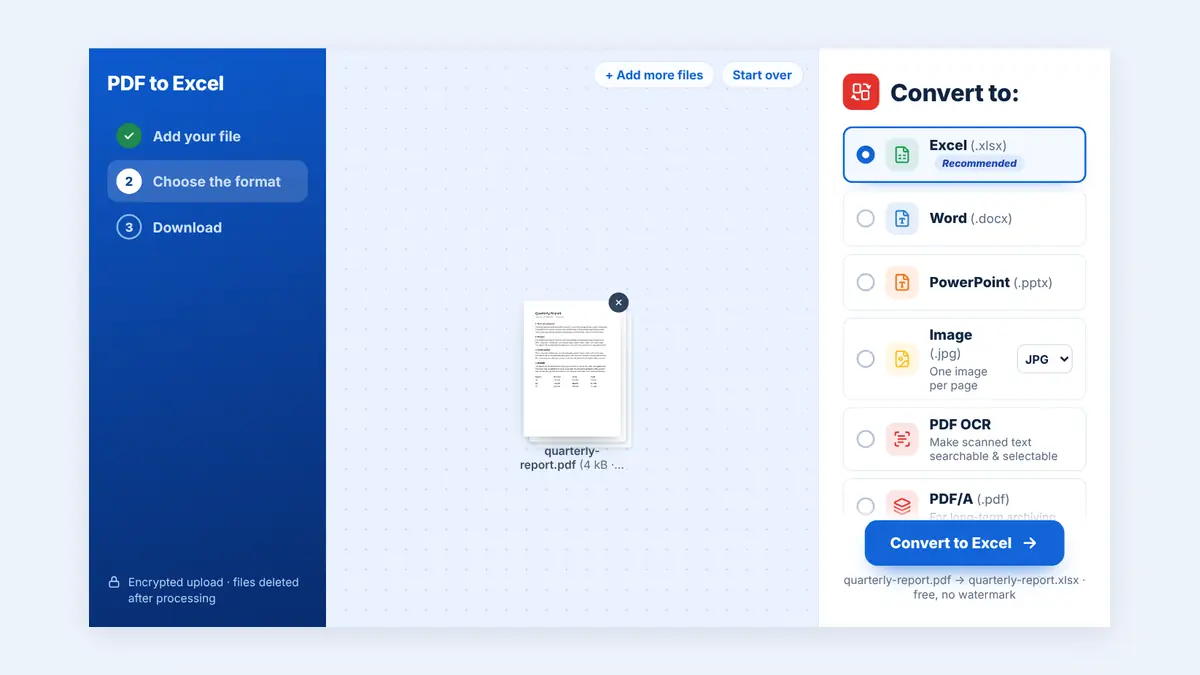
In this guide, you will learn how to prepare PDF tables for Excel, improve conversion accuracy, and check your spreadsheet before using the data for business or reporting.
Why Convert PDF Tables to Excel?
A PDF is designed primarily to preserve the appearance of a document. Excel, on the other hand, is designed for organizing and analyzing data.
Converting PDF tables to Excel can help you:
Calculate totals: Use spreadsheet formulas instead of manually adding figures.
Sort and filter data: Find particular transactions, dates, products, or customers.
Prepare financial reports: Organize figures for budgeting, accounting, and analysis.
Edit table contents: Update values and correct information in spreadsheet cells.
Combine information: Bring data from multiple documents into one workbook.
Reduce manual data entry: Extract existing tables rather than retyping every row.
How to Convert a PDF to Excel
Follow these steps to prepare your PDF tables for spreadsheet work.
Step 1: Review Your PDF Document
Open the PDF and identify the table you want to convert. Check whether the table has clear column headings, consistent rows, and readable text.
If the PDF contains multiple tables, decide whether you need the entire document or only specific pages.
Step 2: Choose a PDF-to-Excel Converter
Use a PDF conversion tool that supports Excel output. Visit HuntPDF.com and use the free PDF to Excel converter.
Choose a conversion method that suits your document. Digitally created PDFs usually contain selectable text, while scanned documents may require optical character recognition (OCR) to recognize the text in the table.
Step 3: Upload the PDF and Start Conversion
Select your PDF file and follow the converter's instructions to create an Excel-compatible file. HuntPDF saves the result as an XLSX workbook that opens in Excel, Google Sheets, and LibreOffice.
For documents containing several pages, check how the converter organizes tables across sheets and pages.
Step 4: Open the Converted Spreadsheet
Open the resulting file in Microsoft Excel or another compatible spreadsheet application. Review the column headings, rows, figures, dates, and other values.
Do not assume that a successful conversion means every cell has been transferred accurately.
Step 5: Clean and Format the Data
Before analyzing the spreadsheet, correct any conversion issues. Remove unnecessary blank rows, fix column alignment, and standardize dates and number formats.
Once the data is clean, you can use formulas, filters, sorting, charts, and pivot tables to analyze it.
How to Prepare PDF Tables for Accurate Conversion
The quality of your converted spreadsheet depends partly on the original PDF. Preparing the document carefully can help reduce errors.
Check the Table Structure
Look for clearly defined columns and rows. Tables with merged cells, multi-line headings, nested sections, or irregular layouts may need manual adjustment after conversion.
Confirm Numbers and Decimal Places
Financial data requires special attention. Check decimal points, thousands separators, negative values, percentages, and currency symbols. For example, a figure such as 1,250.75 should not become 1,25075 or be interpreted as text.
Review Dates and Reference Numbers
Date formats can vary between countries and software settings. Confirm whether a date such as 04/05/2026 represents April 5 or May 4. Also check invoice numbers, account references, and codes that begin with zero.
Use OCR for Scanned Documents
A scanned PDF may contain images of printed pages instead of selectable text. OCR software can recognize the text and convert it into editable data, but recognition errors are possible.
Review the output carefully, particularly where digits such as 0 and 8 or 1 and 7 may look similar.
Common PDF-to-Excel Conversion Problems
| Problem | What to do |
|---|---|
| Columns are misaligned | Move the affected values into the correct columns |
| Numbers appear as text | Apply the appropriate number format |
| Dates are incorrect | Confirm the original date format and correct the cells |
| Rows are missing | Compare the spreadsheet against the original PDF |
| Scanned text is inaccurate | Use OCR and manually verify the results |
| Headings are mixed with data | Separate headings from the table rows |
| Tables span multiple pages | Check that the rows continue in the correct order |
How to Check Converted Financial Data
When converting bank statements, invoices, sales reports, or accounting schedules, perform additional checks before relying on the spreadsheet.
Compare the number of rows in the Excel file with the source PDF.
Check the opening and closing balances, where applicable.
Recalculate totals using Excel formulas.
Inspect a sample of transactions against the original document.
Confirm that dates, currencies, negative figures, and reference numbers are correct.
Review formulas and ensure that imported values are not accidentally treated as text.
For important financial or regulatory reporting, retain the original PDF and document any manual corrections.
Can You Convert a PDF to Excel Without Losing Formatting?
Conversion tools can preserve much of a table's structure, but exact formatting is not always guaranteed. Complex layouts, merged cells, unusual fonts, scanned pages, and multi-page tables can produce different results.
If your main goal is data analysis, prioritize accurate values and a consistent table structure over reproducing the exact visual design of the PDF.
If you need the spreadsheet to look like the original document, you may need to adjust column widths, fonts, borders, and number formats after conversion.
Is It Safe to Convert Financial PDFs Online?
Before uploading a document containing bank details, customer information, payroll records, or confidential financial data, review the converter's privacy policy and file-handling practices.
Use a trusted service and avoid uploading sensitive information to tools whose security and retention policies you do not understand. For highly confidential documents, consider an approved offline conversion method.
Always keep a secure copy of the original PDF until you have verified the converted spreadsheet.
PDF to Excel vs. Manual Data Entry
Manual data entry may be suitable for a very small table, but it can become time-consuming when a document contains hundreds of rows.
PDF-to-Excel conversion can reduce repetitive typing and make data easier to analyze. However, automated conversion still requires verification, particularly when the source contains scanned pages or complex financial tables.
For best results, combine automated conversion with a review of the final spreadsheet.
Frequently Asked Questions
Can I convert a PDF table into Excel?
Yes. A compatible PDF-to-Excel converter can extract tabular data into a spreadsheet. You may need to adjust the resulting columns and formatting.
Can scanned PDF tables be converted to Excel?
Yes, if the conversion process supports OCR. Accuracy depends on image quality, text clarity, and the complexity of the table.
Why are some numbers incorrect after conversion?
The converter may misinterpret decimal points, commas, currency symbols, or characters in scanned text. Compare important values with the original PDF before using the data.
Can I convert multiple PDF pages into one Excel workbook?
Some converters support multi-page documents and can place the extracted tables into one workbook. The exact arrangement depends on the software and document structure.
Is PDF-to-Excel conversion suitable for accounting?
It can help with extracting and organizing accounting data, but the converted spreadsheet should be checked against the original source before being used for reconciliations, tax calculations, or financial reporting.
What should I do after converting a PDF to Excel?
Check the data, correct any errors, standardize number and date formats, and use formulas to validate totals. Save a clean copy of the workbook for future analysis.
Conclusion
Converting PDF tables to Excel makes it easier to organize records, calculate totals, filter information, and prepare reports. The key is to choose a suitable conversion method and verify the spreadsheet before using the extracted data.
Visit HuntPDF.com to explore PDF tools that can help simplify your document workflow and prepare your information for further work.
Free HuntPDF tools for this task
- Convert PDF to Excel: pull tables into an XLSX sheet
- OCR for scanned PDFs: make scanned tables readable first
- Convert Excel to PDF: share finished spreadsheets as PDF
- HuntPDF.com: every free PDF and image tool in one place, with no sign-up and no watermark
Related guides: How to convert Excel to PDF · How to make a scanned PDF searchable


Comments
Post a Comment