How to Convert JPG to PNG Online for Free
JPG is one of the most widely used image formats for photographs, website images, and everyday picture sharing. However, some projects work better with PNG files, particularly when you need lossless saving, repeated image editing, or support for transparent backgrounds.
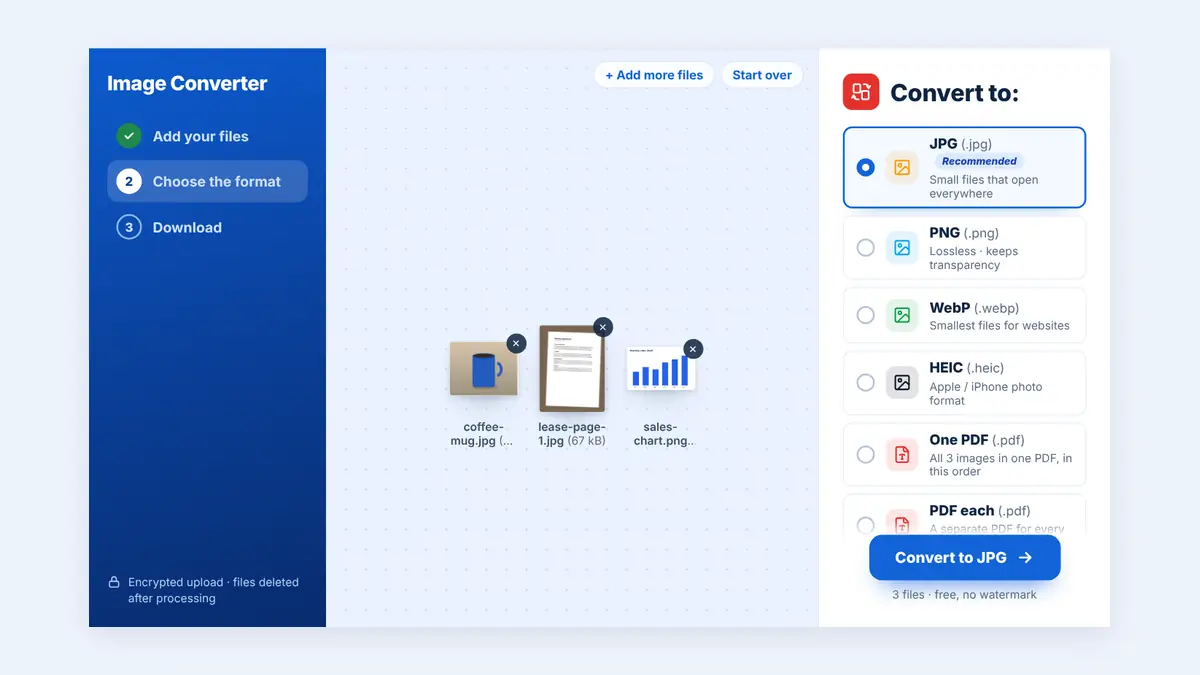
Converting JPG to PNG changes the image's file format, but it is important to understand what the conversion can and cannot do. In this guide, you will learn how JPG and PNG differ, when conversion makes sense, and how to prepare your images for different uses.
What Is the Difference Between JPG and PNG?
JPG and PNG are both popular image formats, but they use different compression methods and serve different purposes.
JPG (JPEG): Uses lossy compression, which reduces file size by discarding some image information. It is often suitable for photographs and everyday image sharing.
PNG: Uses lossless compression, preserving the pixel information of the image being saved. It is often useful for graphics, screenshots, diagrams, and images requiring transparency.
Converting an existing JPG to PNG does not restore image details that were already lost during JPG compression. It simply stores the existing image in another format.
Why Convert JPG to PNG?
There are several reasons to convert a JPG image to PNG.
Preserve Quality During Further Editing
PNG uses lossless compression. Saving an image as PNG can help prevent additional compression loss when the file is saved repeatedly in that format.
However, converting a JPG to PNG cannot recover the original details lost when the JPG was created.
Work with Graphics and Screenshots
PNG is often suitable for screenshots, diagrams, icons, and graphics containing sharp edges or text. If you are editing an existing JPG screenshot, PNG may be a useful format for subsequent work.
Prepare Images for Design Projects
Some design tools and workflows prefer PNG files. Converting a JPG may help meet a project's file-format requirements.
Use a Format That Supports Transparency
PNG supports transparent pixels, which are useful for logos, overlays, and graphic elements. However, a JPG normally has no transparent background to preserve. Converting a JPG to PNG does not automatically remove its background; you need a separate background-removal or image-editing process.
How to Convert JPG to PNG Online
You can convert a JPG image using an online image converter or compatible desktop software.
Step 1: Select Your JPG Image
Choose the JPG or JPEG file you want to convert. Make sure you are using the correct original image, particularly if several versions are stored on your device.
Step 2: Choose a JPG-to-PNG Converter
Visit HuntPDF.com and use the free JPG to PNG converter. If a JPG-to-PNG converter is available, check that it supports your file and output requirements.
If this specific conversion is not offered, use a trusted image-conversion application that supports both formats.
Step 3: Upload the Image
Select your JPG file and follow the converter's instructions. Check any available output settings, such as image dimensions or quality options.
Step 4: Convert the File
Start the conversion and wait for the new PNG image to be created.
Step 5: Download and Check the PNG
Download the converted file and open it in an image viewer. Check that the image looks correct, the dimensions meet your needs, and no unexpected cropping or color changes have occurred.
Keep the original JPG until you have confirmed that the PNG is suitable for your project.
Does Converting JPG to PNG Improve Image Quality?
Not necessarily. This is one of the most important things to understand about image conversion.
JPG uses lossy compression, meaning some image information may be permanently discarded when the JPG is created or saved. PNG can preserve the pixel data it receives, but it cannot recreate details that are no longer present.
For example, if a photograph was heavily compressed as a JPG, converting it to PNG will not restore its original sharpness. It may instead produce a larger file containing essentially the same visual information.
If you need a sharper image, try to locate the original photograph or a higher-quality version.
JPG vs. PNG: Which Format Should You Choose?
| Feature | JPG/JPEG | PNG |
|---|---|---|
| Compression | Lossy | Lossless |
| Typical file size for photographs | Often smaller | Often larger |
| Transparency | Not supported | Supported |
| Photographs | Usually a practical choice | Useful when lossless saving is needed |
| Screenshots and diagrams | Can introduce compression artifacts | Often preserves sharp edges well |
| Repeated editing | Repeated JPG saves can introduce additional loss | Lossless saves preserve the current pixel data |
| Website use | Useful for photographic content | Useful for graphics requiring transparency or crisp detail |
The best format depends on the image and how you plan to use it.
Will a PNG File Be Larger Than the Original JPG?
Often, yes. JPG is designed to compress photographs efficiently, while PNG preserves image data without lossy compression.
A photograph converted from JPG to PNG may become significantly larger. The exact size depends on the image's dimensions, complexity, and compression.
If your goal is to reduce file size for email or website use, converting JPG to PNG may not be the best option. Consider keeping the JPG or using an image-optimization tool instead.
Common JPG-to-PNG Conversion Problems
The PNG file is much larger: This is common when converting photographs. PNG may require more storage than JPG for the same image.
The image still has a white background: Converting to PNG does not automatically make a background transparent. Use a separate background-removal tool if transparency is required.
The image looks no sharper: Conversion cannot restore image information already lost through compression.
The colors appear different: Check the converter's color handling and compare the output in a compatible image viewer.
The file will not upload: Confirm that the destination supports PNG and that the output meets its size and dimension limits.
Is It Safe to Convert JPG Images Online?
Before uploading images to an online service, consider whether they contain sensitive information. Personal photographs, identity documents, and confidential business images may require additional care.
Review the service's privacy policy and file-handling practices. For sensitive images, consider using trusted offline software.
Keep a copy of the original image until you have verified the converted file.
Frequently Asked Questions
Can I convert JPG to PNG without losing quality?
The conversion itself can preserve the pixels received from the JPG, but it cannot restore information lost during earlier JPG compression. Saving the result as PNG avoids further lossy compression from subsequent PNG saves.
Does PNG support transparent backgrounds?
Yes. PNG supports transparency, but converting a normal JPG does not automatically make its background transparent. You must remove the background separately.
Is PNG better than JPG?
Neither format is always better. JPG is often suitable for photographs and smaller files, while PNG is useful for graphics, screenshots, transparency, and lossless saving.
Why is my PNG file larger than my JPG?
PNG uses lossless compression, which is often less efficient than JPG for photographs. As a result, the converted PNG may occupy more storage space.
Can I convert JPG to PNG on my phone?
Yes. Compatible mobile applications and browser-based image converters can convert JPG images to PNG.
Should I convert all website JPG images to PNG?
No. PNG files may increase page weight without improving visible quality. Choose the format according to the image type, transparency requirements, and performance needs of your website.
Conclusion
Converting JPG to PNG can be useful when you need a lossless image format, are working with graphics, or require transparency support. However, conversion does not restore lost image details or automatically remove backgrounds, and the resulting file may be larger.
Choose the format that suits your project, review the converted image, and keep the original file as a backup.
Visit HuntPDF.com to convert images and documents for free, with no sign-up.
Free HuntPDF tools for this task
- Convert JPG to PNG: free and in your browser
- Convert PNG to JPG: smaller files for photos
- Compress images: shrink JPG, PNG and WebP files
- HuntPDF.com: every free PDF and image tool in one place, with no sign-up and no watermark
Related guides: How to convert HEIC photos to JPG · How to remove an image background


Comments
Post a Comment