How to Remove the Background from an Image Online
A clean product photo, a logo without a white box around it, or a signature you can place on any document all start the same way: removing the background. Not long ago this meant careful work in photo-editing software. Today you can do it online in a few seconds and get a transparent PNG ready to use.
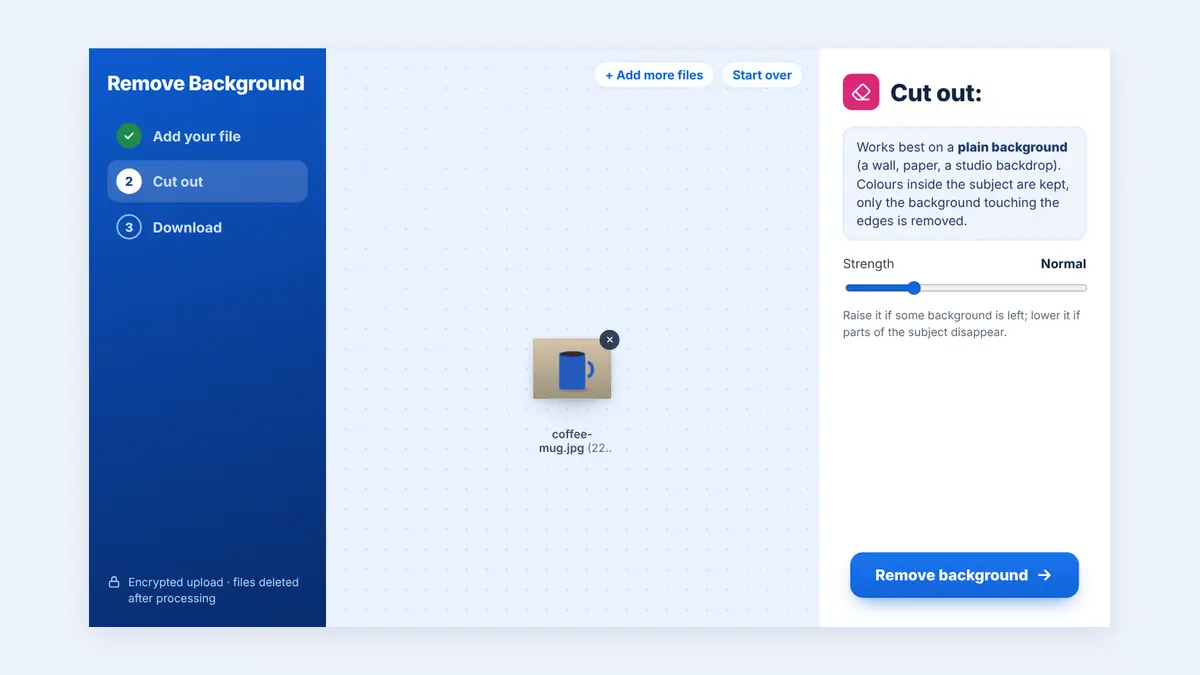
This guide explains when background removal is useful, how to get clean results, and what to do with the transparent image afterwards.
What Is a Transparent PNG?
Most photos are rectangles: every pixel has a colour, including the background. A PNG file can also store transparency, so the background pixels are simply empty. When you place a transparent PNG on a coloured web page, slide, or document, only the subject shows.
JPG does not support transparency, which is why images with removed backgrounds are saved as PNG.
Common Uses for Background Removal
- Online shop product photos: place products on a clean white or branded background.
- Logos: turn a logo photographed or scanned on paper into a file you can put on any colour.
- Signatures: cut out a handwritten signature to place on PDFs and letters.
- Profile and ID-style photos: replace a messy background with a plain one.
- Presentations and social posts: layer people or objects over designs.
How to Remove a Background Online
Step 1: Choose a good photo
The clearer the difference between the subject and the background, the cleaner the cut-out.
Step 2: Open the tool
You can remove the background from an image online and download a transparent PNG. You can add more than one picture at a time.
Step 3: Process the image
The result is shown on a checked pattern, so you can see exactly which areas are now transparent.
Step 4: Check the edges and download
Zoom in on hair, fingers, and fine details before you download the PNG.
Tips for Cleaner Cut-Outs
- Photograph against a plain, contrasting background, such as a white sheet or wall.
- Use even lighting and avoid strong shadows behind the subject.
- Keep the subject in sharp focus.
- For signatures, write with a dark pen on plain white paper and photograph it straight on.
Using Your Transparent Image
A cut-out signature is especially handy for paperwork. Upload the PNG when you add your signature to a PDF, and it will sit cleanly on the page without a white box.
Transparent PNGs from high-resolution photos can be large. If you need a smaller file for a website or online shop, resize the image to the dimensions you need before uploading.
Frequently Asked Questions
Why is my image saved as PNG and not JPG?
JPG cannot store transparency. PNG keeps the empty background so the subject can be placed anywhere.
Does it work with busy backgrounds?
It works best with plain backgrounds. Busy scenes with similar colours to the subject may need a retake or manual touch-up.
Can I add a new background colour?
Yes. Place the transparent PNG on any colour or design in your slide, document, or design tool.
Conclusion
Background removal turns ordinary photos into flexible images for shops, documents, and branding. Start with a clear photo on a plain background, check the edges, and keep the transparent PNG for reuse.
Free HuntPDF tools for this task
- Remove image background: get a transparent PNG
- Resize images: exact pixel dimensions
- Compress images: smaller files for websites
- HuntPDF.com: every free PDF and image tool in one place, with no sign-up and no watermark
Related guides: How to sign a PDF online · How to convert JPG to PNG


Comments
Post a Comment