How to Convert iPhone HEIC Photos to JPG
iPhones save photos in HEIC format by default. HEIC keeps excellent quality in small files, but many websites, Windows apps, older Android phones, and online forms still do not accept it. If you have ever tried to upload an iPhone photo and seen an "unsupported file" message, HEIC was probably the reason.
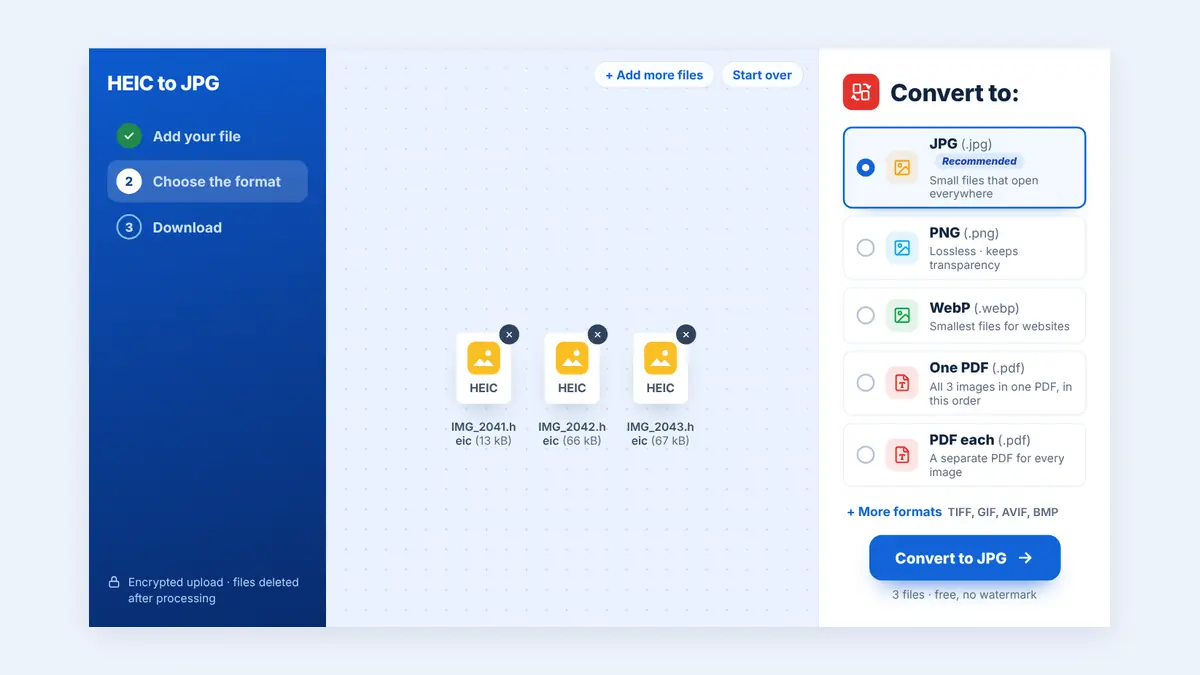
This guide explains what HEIC is, how to convert HEIC photos to JPG, and how to prepare them for uploads and email.
What Is HEIC?
HEIC (High Efficiency Image Container) is a modern image format used by Apple devices. It can store a photo at roughly the same visible quality as a JPG while using less storage space. It also supports features such as Live Photos and image sequences.
The downside is compatibility. JPG works almost everywhere, while HEIC support is still limited on many platforms.
When You Need to Convert HEIC to JPG
- Uploading photos to job portals, government forms, or online shops.
- Opening iPhone photos on a Windows computer.
- Sharing pictures with people using older Android phones.
- Adding photos to documents, slides, or websites.
How to Convert HEIC Photos to JPG Online
Step 1: Get the photos onto your device
Transfer the HEIC files from your iPhone by cable, AirDrop, or cloud storage. You can also convert directly on your phone using a browser.
Step 2: Open a converter
You can convert HEIC photos to JPG in your browser without installing an app. Several photos can be converted at once.
Step 3: Upload and convert
Select your HEIC files and start the conversion.
Step 4: Download and check
Open a few of the JPGs to confirm that colours and orientation look correct.
Preparing Photos for Upload Limits
Modern phone photos can be several megabytes each, and many forms limit uploads to 1 MB or 2 MB. After converting:
- Compress the JPG images to reduce file size while keeping them clear.
- If a site requires specific dimensions, such as a 600 × 600 pixel profile photo, resize the photos to exact pixel dimensions.
- Check the result on screen before uploading.
How to Stop Your iPhone from Saving HEIC
If you regularly need JPG files, you can change the camera setting. On most iPhones, go to Settings → Camera → Formats and select Most Compatible. New photos will be saved as JPG. Existing photos stay in HEIC, so you will still need to convert those.
Keep in mind that JPG files use more storage, so you may prefer to keep HEIC and convert only when needed.
Frequently Asked Questions
Does converting HEIC to JPG reduce quality?
JPG uses lossy compression, but with sensible settings the difference is very hard to see in everyday photos.
Can I convert many photos at once?
Yes. Batch conversion lets you process a whole set of holiday or work photos together.
Should I convert to PNG instead?
PNG files are much larger for photographs. JPG is the better choice for most photo uploads and sharing.
Conclusion
HEIC is great for saving space on your phone, but JPG is still the safest format for sharing. Convert when you need compatibility, then compress or resize the photos to meet upload limits.
Free HuntPDF tools for this task
- Convert HEIC to JPG: batch-convert iPhone photos
- Convert HEIC to PDF: turn photos into a PDF
- Compress photos: meet upload size limits
- HuntPDF.com: every free PDF and image tool in one place, with no sign-up and no watermark
Related guides: How to convert HEIC photos to PDF · How to convert JPG to PNG


Comments
Post a Comment