HEIC to PDF: Convert iPhone Photos to PDF for Free
Modern smartphones capture high-quality photographs, but the images may not always use a format that works with every website, application, or document workflow. Apple devices commonly use HEIC to store photos efficiently, which can create compatibility challenges when you need to submit, print, or share images as documents.
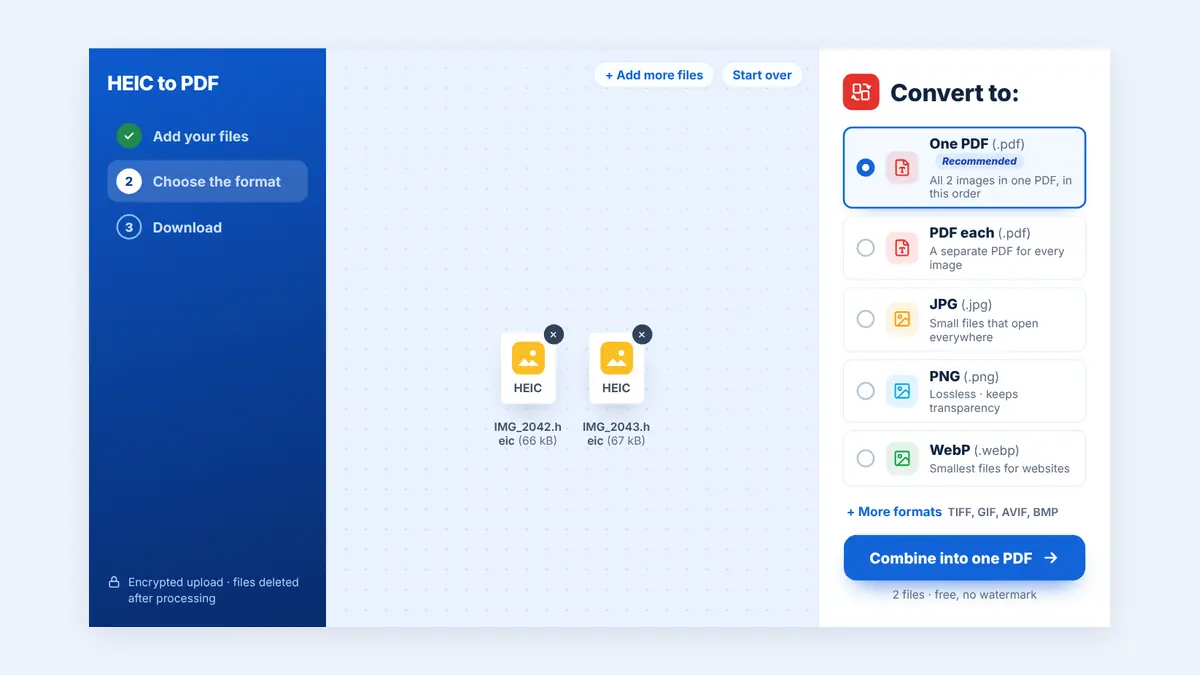
Converting HEIC images to PDF helps you organize photographs into a document that is convenient to share and store. In this guide, you will learn what HEIC is, why conversion may be useful, and how to prepare your images for a reliable PDF document.
What Is the HEIC Image Format?
HEIC stands for High Efficiency Image Container. It is commonly associated with Apple's use of the High Efficiency Image File Format (HEIF) for photographs on iPhones and other compatible devices.
HEIC can store high-quality images efficiently, often using less storage space than comparable JPEG images. However, compatibility varies between operating systems, applications, and websites.
For example, a photo may open normally on your iPhone but fail to upload to a website that accepts only JPG, PNG, or PDF files.
Converting the image to PDF can help when the receiving system specifically requires a document rather than an individual photograph.
Why Convert HEIC Photos to PDF?
There are several situations where turning smartphone photos into a PDF can be useful:
Submit documents online: Combine photographs of paperwork into a PDF when an application portal requires that format.
Organize scanned pages: Turn photos of receipts, forms, or certificates into a single document.
Share multiple images: Send several related photographs in one file instead of separate attachments.
Prepare documents for printing: Arrange photographs or captured pages in a printable format.
Keep records together: Store related business documents, travel paperwork, or personal records in one PDF.
A PDF is particularly useful when the images represent pages of a document rather than photographs that need to remain separate.
How to Convert HEIC to PDF
You can use a compatible image-to-PDF converter or a document application that supports HEIC files.
Step 1: Find Your HEIC Photos
Locate the photographs on your iPhone, computer, or other device. On an iPhone, photos captured with the High Efficiency camera setting are commonly stored in HEIC format.
Select the images you want to include in your PDF. For document photos, check that the text is clear and the entire page is visible.
Step 2: Choose a Compatible Converter
Visit HuntPDF.com and open the HEIC to PDF converter.
Before uploading, check whether the selected tool explicitly supports HEIC input. Some image-to-PDF converters accept JPG and PNG but do not support HEIC directly.
If HEIC is not supported, convert the photos to a compatible format such as JPG first, then use an image-to-PDF tool.
Step 3: Upload the Photos
Select your HEIC photos. HuntPDF's HEIC to PDF converter accepts them directly. If you have converted the photos to JPG, upload those files instead.
When preparing a multi-page document, select the images in the order you want them to appear.
Step 4: Arrange the Pages
Check the photo order before converting, so the pages come out in the right sequence. Choose One PDF for a single document, or PDF each for separate files.
For photographed paperwork, portrait orientation and a suitable page size can make the PDF easier to read. Avoid cropping edges that contain text, signatures, or reference numbers.
Step 5: Convert and Download the PDF
Start the conversion and download the resulting PDF when processing is complete.
Open the file and check every page. Confirm that the photographs are upright, the text is readable, and no important content has been cut off.
What If Your Converter Does Not Support HEIC?
Not every online converter can process HEIC files directly. If your chosen tool rejects the format, convert the images to JPG or another supported format first.
You can also convert HEIC photos to JPG first, or change your iPhone camera setting to Most Compatible so new photos are saved as JPG.
When converting to JPG, remember that JPEG uses lossy compression. Repeated conversions or aggressive compression may reduce image quality. Keep the original HEIC files as a backup.
If your images contain important text, numbers, or fine details, inspect the converted images before creating the final PDF.
HEIC vs. JPG vs. PDF
Understanding the differences between these formats helps you choose the right one for your task.
| Format | Main purpose | Best use |
|---|---|---|
| HEIC | Efficient storage of photographs | Saving smartphone photos while managing storage |
| JPG/JPEG | Broadly compatible image format | Uploading individual photos to services that accept JPG |
| Document format that can contain multiple pages | Combining images and paperwork into one shareable file |
HEIC and JPG are image formats, while PDF is a document format. Converting a photo to PDF changes how the image is packaged and presented; it does not automatically make text inside the image searchable.
How to Preserve Quality When Converting HEIC to PDF
Smartphone photos may contain small text, fine details, and important visual information. Follow these tips to improve your results.
Use the Original Photos
Start with the original HEIC files whenever possible. Avoid using screenshots or images that have already been compressed several times.
Check the Resolution
If the photo contains a document, make sure the text is readable when zoomed in. A high-resolution image can still be difficult to read if it is blurry or poorly lit.
Avoid Unnecessary Compression
If the finished PDF is too large to upload, compress it after conversion. Smaller files are convenient, but excessive compression can make text and details harder to read.
Check Orientation and Cropping
Ensure that every photo is upright and that all important edges are visible. This is particularly important for identity documents, receipts, and signed forms.
Review the Finished PDF
Open the final file and check the page order, readability, and file size before submitting or sharing it.
How to Convert Multiple HEIC Photos into One PDF
If you have photographed several pages of the same document, combining them into one PDF can make the file easier to manage.
For example, you might have four smartphone photos of a signed application. You can convert the images to a supported format if necessary, arrange them in order, and combine them into a single PDF.
A simple workflow is:
Select the photos you need.
Convert HEIC images to JPG if your chosen PDF tool does not support HEIC.
Upload the compatible images to a tool that supports multiple images.
Arrange the pages in the correct order.
Convert the images into one PDF.
Open the PDF and verify that all pages are readable.
Use descriptive filenames for the original images so that you can identify and arrange them more easily.
Is It Safe to Convert HEIC Photos Online?
Smartphone photos can contain personal information, location-related metadata, or sensitive document details. Before uploading images, consider what information they contain.
Review the conversion service's privacy policy and file-handling practices. For confidential documents, such as passports, identity cards, bank statements, or signed contracts, consider using trusted offline software.
Remember that converting a photo to PDF does not automatically remove all metadata or conceal sensitive information visible in the image.
Frequently Asked Questions
Can I convert HEIC to PDF on an iPhone?
Yes. You can use a compatible iPhone application, built-in document workflow, or online converter that supports HEIC input. If the tool does not support HEIC, convert the image to JPG first.
Why will my PDF converter not accept HEIC files?
The converter may support only formats such as JPG, JPEG, or PNG. Check the accepted file types and convert your HEIC images to a supported format if necessary.
Can I combine multiple HEIC photos into one PDF?
Yes, provided your conversion workflow supports HEIC input directly or you convert the images to a compatible format first. Then use a tool that can combine multiple images into one PDF.
Does converting HEIC to PDF reduce image quality?
It can, depending on the conversion process, image resizing, and compression settings. Keep the original files and review the final PDF for clarity.
Is HEIC better than JPG?
HEIC can store high-quality photographs efficiently, while JPG is widely supported across websites, applications, and devices. The better choice depends on storage requirements and compatibility.
Will a PDF made from HEIC photos have searchable text?
Not automatically. If the PDF contains only photographs, you may need optical character recognition (OCR) to recognize the text and make it searchable.
Conclusion
Converting HEIC photos to PDF is useful when you need to submit smartphone images, organize photographed paperwork, or combine multiple pictures into one document. Check format compatibility before uploading, preserve the original images, and review the final PDF before sharing it.
Visit HuntPDF.com to explore available PDF tools and simplify your document workflow.
Free HuntPDF tools for this task
- Convert HEIC to PDF: one PDF or one per photo
- Convert HEIC to JPG: open iPhone photos anywhere
- Compress the finished PDF: fit portal upload limits
- HuntPDF.com: every free PDF and image tool in one place, with no sign-up and no watermark
Related guides: How to convert HEIC photos to JPG · How to convert images to PDF


Comments
Post a Comment