Extract Pages from a PDF: Save Selected Pages as New Files
PDF files often contain more information than you need. You might have a long report, a business contract, a textbook, an invoice bundle, or a scanned document but only need a few pages. Instead of sharing the entire PDF, you can extract specific pages and save them as individual PDF files.
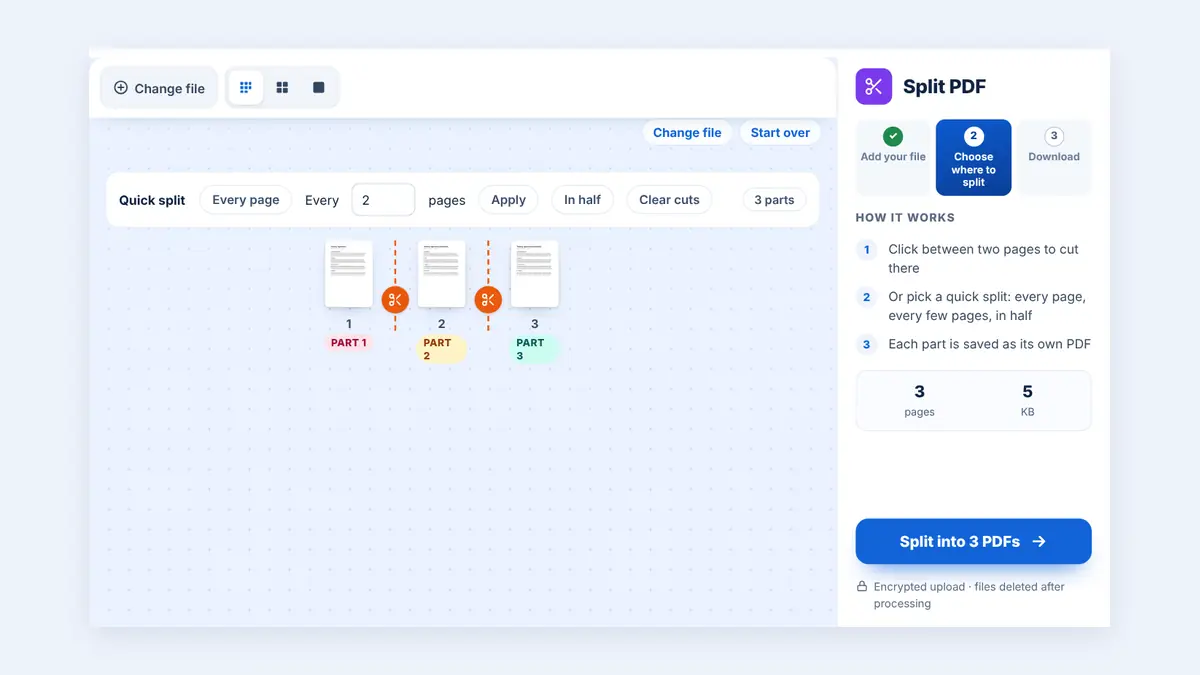
In this guide, you will learn how to select the pages you need, split them into separate files, and keep your documents organized.
What Does It Mean to Extract PDF Pages?
Extracting PDF pages means selecting particular pages from a larger PDF and saving them separately. For example, if a PDF contains 50 pages and you only need pages 3, 8, and 12, you can extract those pages instead of sending the entire document.
Depending on the PDF tool you use, you may be able to save each selected page as an individual file or combine selected pages into one smaller PDF.
Why Extract Specific PDF Pages?
There are several practical reasons to extract pages from a PDF:
Share important information: Send only the pages relevant to a colleague, customer, or client.
Separate business documents: Extract invoices, receipts, forms, or contract sections from a larger file.
Organize study materials: Save selected textbook chapters, exercises, or reference pages.
Simplify document submission: Provide only the pages requested by a school, bank, employer, or government department.
Reduce unnecessary file size: Avoid sharing pages that the recipient does not need.
How to Extract PDF Pages into Individual Files
You can use an online PDF tool or desktop PDF software. The general process is straightforward.
Step 1: Open Your PDF File
Choose the PDF document containing the pages you want to extract. Check that you have selected the correct file before starting.
Step 2: Select the Pages You Need
Identify the exact page numbers you want to save. For example, you might need pages 2, 5, and 9 from a longer report.
Double-check the page numbering. The page number displayed in the PDF viewer may differ from the printed page number shown inside the document.
Step 3: Extract or Split the Pages
Choose an extraction or splitting option in your PDF software. On HuntPDF you can click individual pages or type a range such as 2, 5-8, then save them as one PDF or as a separate PDF per page.
If you need three separate files, make sure the tool is configured to create individual files rather than one combined document.
Step 4: Download and Rename the Files
Save the resulting PDF files to your computer. Use descriptive filenames, such as Invoice-April.pdf, Contract-Page-5.pdf, or Report-Appendix.pdf.
Clear filenames make it easier to find documents later and reduce the risk of sending the wrong file.
Step 5: Check the Extracted Documents
Open each new PDF and confirm that it contains the correct page, that the text and images look right, and that the page orientation is correct. If the original document contains forms, signatures, or annotations, verify that the information you need has been retained.
Extracting One Page vs. Multiple Pages
The best method depends on how you plan to use the extracted content.
| Your requirement | Recommended approach |
|---|---|
| Save one particular page | Extract that page into a separate PDF |
| Save several pages as separate files | Select the pages and create individual PDFs |
| Keep several selected pages together | Extract them into one new PDF |
| Create a separate PDF for every page | Use a split-by-page option |
| Divide a long report into sections | Split the PDF by page ranges |
Common Mistakes to Avoid
Selecting the wrong page numbers: Always check whether the PDF viewer's page numbers match the document's printed numbering.
Creating one file instead of several: If you need individual files, check the output settings before processing.
Forgetting to review the result: Open the extracted PDFs to confirm that the correct pages and information are present.
Sharing confidential information accidentally: Before sending a document, verify that it contains only the pages you intend to share. Extracting pages is not the same as permanently removing confidential information from the original file.
Ignoring file names: Rename extracted files clearly so that you can identify their contents without opening each one.
Is It Safe to Extract PDF Pages Online?
Online PDF tools can be convenient, but you should consider the sensitivity of your documents before uploading them. For confidential financial statements, identification documents, medical records, or legal agreements, check the provider's privacy policy, file-retention practices, and security information. If your document is highly sensitive, consider using trusted offline software instead.
Also, remember that extracting pages does not automatically remove passwords, metadata, hidden information, or confidential details from the pages you keep.
Extract PDF Pages More Efficiently with HuntPDF
When you need to work with PDF documents, HuntPDF provides an online destination for PDF-related tasks. Visit HuntPDF.com to extract, split, and organize PDF pages for free.
Before processing a file, confirm that the selected tool supports your specific requirement: extracting chosen pages into individual files, splitting a PDF by page range, or saving selected pages together.
Frequently Asked Questions
Can I extract only certain pages from a PDF?
Yes. PDF software that supports page extraction lets you select specific pages or page ranges instead of processing the entire document.
Can I save each extracted page as a separate PDF?
Yes. Use a tool that supports extracting pages into individual files or splitting a PDF into one-page documents. Available options vary by tool.
Can I extract pages from a PDF without changing the original?
Many PDF tools create new output files and leave the original unchanged. Keep a backup if the document is important.
Will extracting PDF pages reduce file size?
It often does because the new file contains fewer pages. However, the actual size reduction depends on the images, fonts, and other content included in the selected pages.
Can I extract pages from a password-protected PDF?
It depends on the document's security settings and whether you have the required password and permissions. Do not attempt to bypass access restrictions.
What is the difference between extracting and splitting a PDF?
Extracting usually means selecting particular pages to save separately or together. Splitting generally means dividing a PDF into multiple files according to a rule, such as one file per page or a specified page range.
Conclusion
Extracting specific PDF pages into individual files helps you share relevant information, organize documents, and avoid sending unnecessary pages. Select the correct pages, choose the right output format, review the resulting files, and use clear filenames. For your next PDF task, visit HuntPDF.com and try the Extract PDF Pages tool.
Visit HuntPDF.com to explore online PDF tools and simplify your document workflow.
Free HuntPDF tools for this task
- Extract PDF pages online: one PDF or one file per page
- Split a PDF: cut a long file into parts
- Remove unwanted pages: keep only what you need
- HuntPDF.com: every free PDF and image tool in one place, with no sign-up and no watermark
Related guides: How to split a PDF · How to delete pages from a PDF


Comments
Post a Comment