Split PDF Online Free: Extract Only the Pages You Need
Sometimes you only need a few pages from a large PDF document. You might want to share a particular chapter, extract invoices from a report, or submit selected pages without sending the entire file. Splitting a PDF helps you separate the pages you need and keep your documents organized.
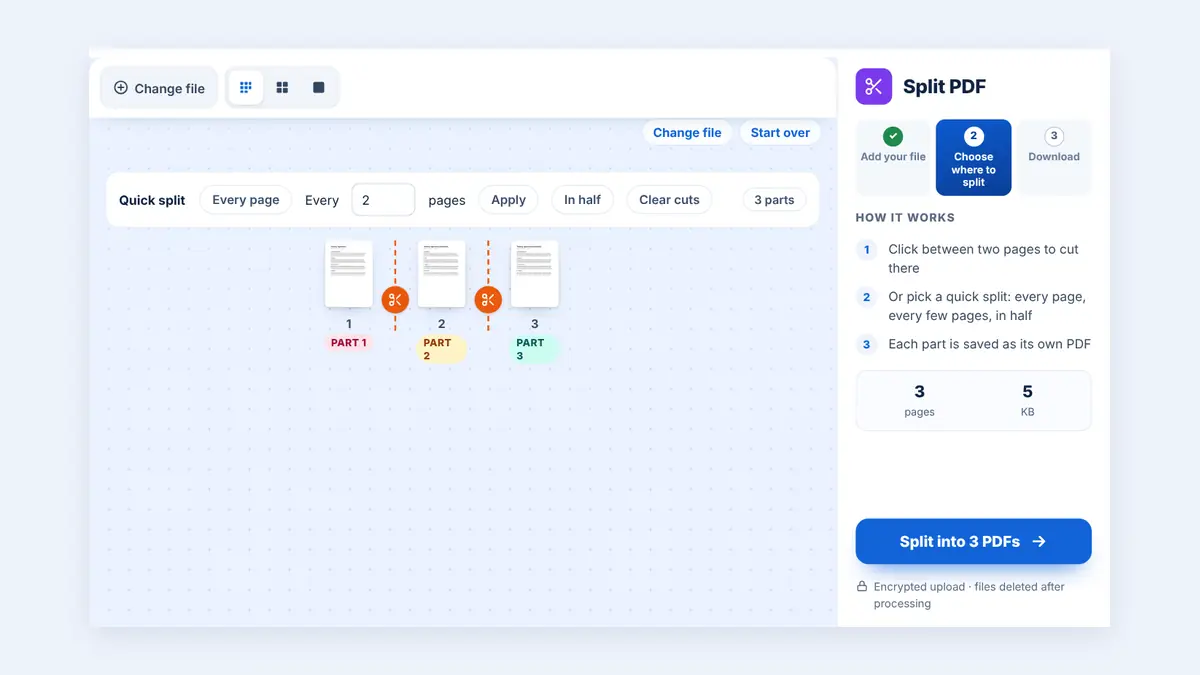
With HuntPDF, you can explore convenient online PDF tools to manage your documents directly in your browser. This guide explains how to split a PDF, when to use page extraction, and how to prepare your selected pages for sharing.
Why Split a PDF Document?
Splitting a PDF is useful when you need to work with only part of a document.
1. Extract Important Pages
If a PDF contains dozens or hundreds of pages, you may need only a few specific sections. Extracting selected pages makes it easier to focus on the relevant information.
2. Make File Sharing Easier
Large documents can be inconvenient to send by email or upload to online portals. Separating the required pages can create smaller, more manageable files.
3. Organize Business Records
Businesses often receive combined invoices, receipts, statements, and reports. Splitting these documents can help organize individual records for accounting, review, and archiving.
4. Prepare Specific Documents for Submission
Applications, assignments, and official submissions sometimes require only particular pages from a larger PDF. Splitting the document helps you prepare the relevant pages without sharing unnecessary information.
How to Split a PDF Online Using HuntPDF
Follow these steps to separate the pages you need.
Step 1: Open HuntPDF
Visit Split PDF Online Free – HuntPDF and open the Split PDF tool. Select the PDF document you want to separate from your device.
Step 2: Choose the Pages You Need
Review the document and identify the pages you want to extract. On HuntPDF, every page appears as a thumbnail, and you click the scissors between pages wherever you want a new file to start.
For example, if you need pages 3, 4, and 5 from a 20-page report, you can pull just those pages into their own file.
Step 3: Process the PDF
Confirm your selections and click the appropriate split or process button. Wait for the tool to finish separating the selected pages.
Step 4: Download and Review Your Files
Download the resulting PDF file or files. Open them to confirm that the required pages are included, correctly ordered, and readable.
Get started: Visit HuntPDF.com to explore its available PDF utilities.
Different Ways to Split a PDF
The best splitting method depends on how you intend to use the document.
Extract Selected Pages
Use this approach when you need particular pages from different parts of a PDF, such as pages 2, 7, and 12.
Split by Page Range
Choose a continuous range when you need an entire section, such as pages 10–15 of a report.
Separate a Large PDF into Multiple Files
If you need to divide a lengthy document into smaller sections, a splitting tool may let you create separate files based on page ranges or other available settings.
Before processing, check which splitting options the selected tool supports.
Tips for Splitting PDF Files Successfully
Check page numbers carefully: Confirm the page numbers before extracting content.
Keep pages in order: Make sure the extracted pages follow the intended sequence.
Use descriptive filenames: Names such as
Invoice_Extract.pdforReport_Pages_3-5.pdfmake files easier to identify.Review the output: Open every downloaded file to confirm that no required pages are missing.
Protect sensitive information: Avoid sharing unnecessary pages containing confidential or personal details.
Compress large files if needed: If the extracted document is still too large to upload or email, consider using a PDF compression tool.
Key Advantages of Using HuntPDF
HuntPDF offers online PDF utilities designed to simplify common document tasks.
Convenient browser access: Use supported tools without installing dedicated desktop software.
Free tools: Access available PDF utilities without purchasing desktop applications.
Simple workflow: Upload, select available options, process, and download.
Desktop and mobile access: Use the website on supported computers, tablets, and smartphones.
No account required for tools that support guest access: Check the selected tool for its current requirements.
For confidential documents, review HuntPDF's current privacy policy and file-handling practices before uploading. Split PDF Online Free – HuntPDF
Frequently Asked Questions
1. How do I split a PDF and extract only certain pages?
Open a PDF splitting tool, upload your document, mark where each new file should start, and download the parts. Download the resulting PDF and check the extracted pages.
2. Can I split a PDF online for free?
HuntPDF offers free online PDF utilities. Check the current Split PDF tool page for any file-size restrictions or other limitations.
3. Will splitting a PDF reduce its quality?
Splitting usually separates existing pages rather than reducing their quality. However, the result depends on the processing method, so review the output if image quality or formatting is important.
4. Can I split a PDF on my phone?
You can access HuntPDF through a supported mobile browser. HuntPDF accepts files up to 260 MB and works in any modern browser, on a phone or a computer.
5. Can I extract pages from a password-protected PDF?
Some protected PDFs require a password before they can be processed. Only access documents you are authorized to use, and follow the document owner's restrictions.
Conclusion: Extract the PDF Pages You Need
You do not always need to share or manage an entire PDF document. Splitting a PDF allows you to separate important pages, simplify file sharing, and organize documents for work, study, or personal use.
HuntPDF provides convenient online PDF utilities to help you manage digital documents from your browser.
Ready to organize your PDF? Visit HuntPDF.com and try the free Split PDF tool.
Free HuntPDF tools for this task
- Split PDF online: cut one PDF into separate files
- Extract PDF pages: copy only the pages you need into a new PDF
- Merge PDF files: join files back into one document
- HuntPDF.com: every free PDF and image tool in one place, with no sign-up and no watermark
Related guides: How to extract pages from a PDF · How to delete pages from a PDF


Comments
Post a Comment