How to Delete Pages from a PDF Online for Free
PDF documents sometimes contain blank pages, duplicate scans, outdated information, or sections you no longer need. These extra pages can make a document harder to read and share. Fortunately, you do not need to recreate the entire file just to remove a few pages.
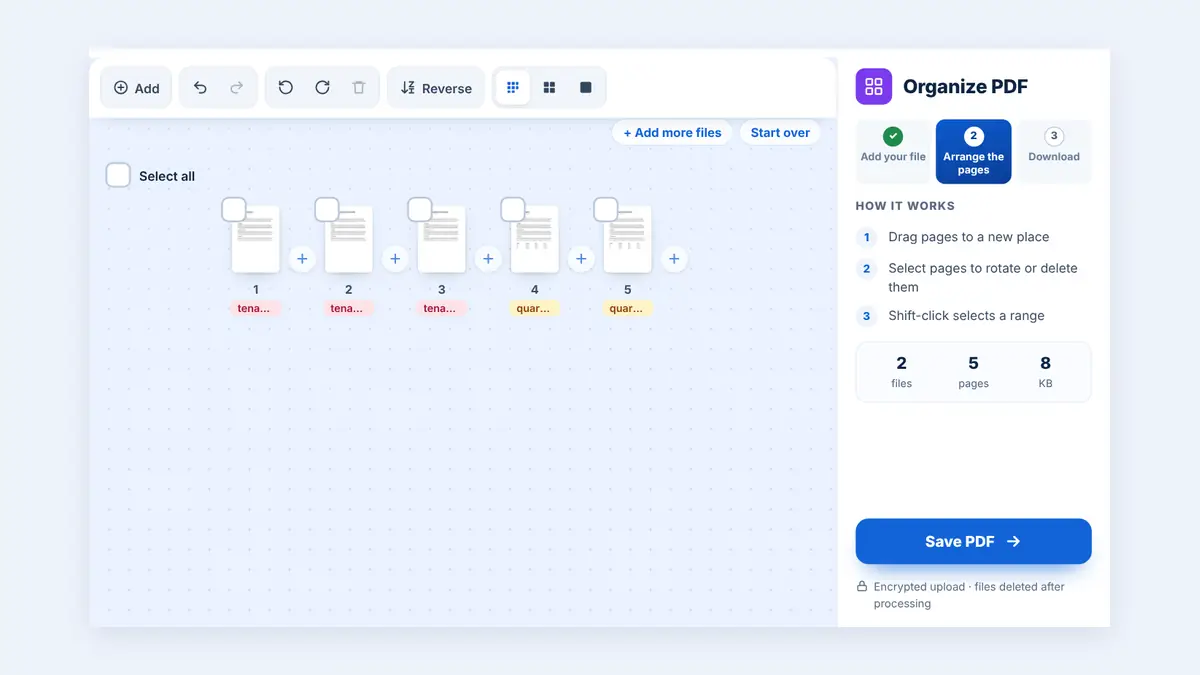
In this guide, you will learn how to delete unwanted pages from a PDF, clean up scanned documents, and prepare a more organized file for sharing.
Why Delete Unwanted Pages from a PDF?
Removing unnecessary pages can make your documents easier to manage and more professional. Here are some common situations where deleting PDF pages is useful:
Remove blank pages: Eliminate empty pages accidentally added during scanning or document conversion.
Delete duplicate pages: Remove repeated invoices, forms, or scanned documents.
Clean up reports: Remove outdated sections or pages that are no longer relevant.
Prepare documents for submission: Keep only the required information in a document you need to submit.
Improve document organization: Make long PDFs easier to read and navigate.
How to Delete Unwanted Pages from a PDF Online
You can remove unwanted pages using HuntPDF's online Delete PDF Pages tool without installing additional software.
Step 1: Open the Delete PDF Pages Tool
Visit HuntPDF Delete PDF Pages to get started.
Step 2: Upload Your PDF File
Click the file selection option or drag your PDF into the upload area. Wait for the document's pages to appear as thumbnails.
Step 3: Select the Pages You Want to Remove
Review the page thumbnails and click the pages you no longer need. On HuntPDF, selected pages turn red, making them easier to identify before deletion.
Check the page numbers carefully, especially if your document contains many pages.
Step 4: Delete the Selected Pages
After selecting the unwanted pages, use the tool's delete or removal control to process your document. Review your selections before confirming the operation.
Step 5: Download and Review Your PDF
Download the new PDF and open it to confirm that the unwanted pages have been removed. Check the remaining pages to make sure the document still reads correctly.
Your original file remains unchanged, so you can keep it as a backup if needed.
Which PDF Pages Should You Remove?
The pages you remove depend on the purpose of your document. Consider these examples:
| Document type | Pages you might remove |
|---|---|
| Scanned paperwork | Blank pages and duplicate scans |
| Business report | Outdated or irrelevant sections |
| Invoice bundle | Duplicate invoices or unnecessary pages |
| School assignment | Extra blank pages at the beginning or end |
| Contract draft | Pages that are no longer required in the draft |
| Presentation exported as PDF | Empty or accidentally duplicated pages |
Before deleting any page, confirm that it does not contain information needed by the recipient or required for recordkeeping.
How to Delete Blank Pages from a PDF
Blank pages commonly appear when scanning double-sided documents, converting Word files, or combining several PDFs.
To remove them:
Open your PDF in a page-deletion tool.
Review the page thumbnails for empty pages.
Select the pages that should be removed.
Process the PDF and download the result.
Check the final document to ensure no important content has been deleted.
Some pages may look blank but contain small page numbers, signatures, or faint scanned text. Inspect them carefully before removing them.
Delete PDF Pages Without Affecting the Remaining Content
When removing PDF pages, your goal should be to preserve the content on the pages you keep. Use a tool designed for PDF page deletion rather than taking screenshots of the pages and rebuilding the document.
After processing, check that text remains readable, images appear correctly, and the remaining pages are in the expected order. If your PDF includes interactive forms, bookmarks, digital signatures, or special annotations, verify those elements as well, because some document operations can affect them.
Is It Safe to Delete PDF Pages Online?
Online tools are convenient, but you should consider the sensitivity of your document before uploading it.
HuntPDF states that files are processed over an encrypted HTTPS connection and automatically deleted after processing. You can review the HuntPDF Privacy Policy for more information about file handling.
For highly confidential documents, such as legal agreements, identity documents, or sensitive financial records, check the applicable privacy information and consider whether offline software is more appropriate.
Important: Deleting pages from a PDF removes them from the output document, but it is not the same as redacting sensitive information. If you need to conceal confidential text that remains on a page, use a proper PDF redaction tool.
Delete Pages, Extract Pages, or Split a PDF?
These three operations serve different purposes.
Delete PDF Pages: Remove unwanted pages and keep the rest of the document in a new PDF.
Extract PDF Pages: Keep selected pages and save them as a separate PDF.
Split PDF: Divide a PDF into multiple files or sections.
For example, if you have a 30-page report and want to remove three blank pages, use Delete PDF Pages. If you only need pages 5 and 10, use Extract PDF Pages instead.
Explore the relevant HuntPDF tools:
Frequently Asked Questions
Can I delete multiple pages from a PDF at once?
Yes. HuntPDF's Delete PDF Pages tool allows you to select multiple unwanted pages and remove them in one operation.
Can I delete pages from a PDF without deleting the original file?
Yes. The tool produces a new PDF with the selected pages removed. Keep your original file if you may need to restore the complete document later.
Can I delete blank pages from a scanned PDF?
Yes. Review the page thumbnails, select the blank pages, and process the document. Make sure the pages do not contain faint text or other important information.
Does deleting PDF pages reduce file size?
It often does because the resulting PDF contains fewer pages. The amount of space saved depends on the content and images on the pages removed.
Can I delete PDF pages on my phone?
HuntPDF's PDF tools support modern mobile browsers. You can open the Delete PDF Pages tool, select a file, choose the unwanted pages, and download the resulting document.
What happens if I delete the wrong page?
If you have not saved a backup, return to the original PDF and repeat the process with the correct selections. Always review your selected pages before processing.
Conclusion
Deleting unwanted PDF pages is a simple way to remove blank sheets, duplicate scans, and unnecessary information without recreating the entire document. Select the pages carefully, process the file, and review the final PDF before sharing it.
Ready to clean up your document? Use HuntPDF Delete PDF Pages to remove the pages you no longer need and download a cleaner PDF.
Free HuntPDF tools for this task
- Delete PDF pages: remove blank or unwanted pages
- Extract the pages you want to keep: save them as a new PDF
- Organize PDF pages: reorder and rotate pages too
- HuntPDF.com: every free PDF and image tool in one place, with no sign-up and no watermark
Related guides: How to extract pages from a PDF · How to split a PDF


Comments
Post a Comment