JPG to PDF: Combine Photos into One PDF for Free
JPG images are convenient for storing photographs, scanned paperwork, receipts, and screenshots. However, when you need to share several images together, sending them individually can be inconvenient. Converting JPG images to PDF allows you to combine them into one organized document that is easier to share, print, and store.
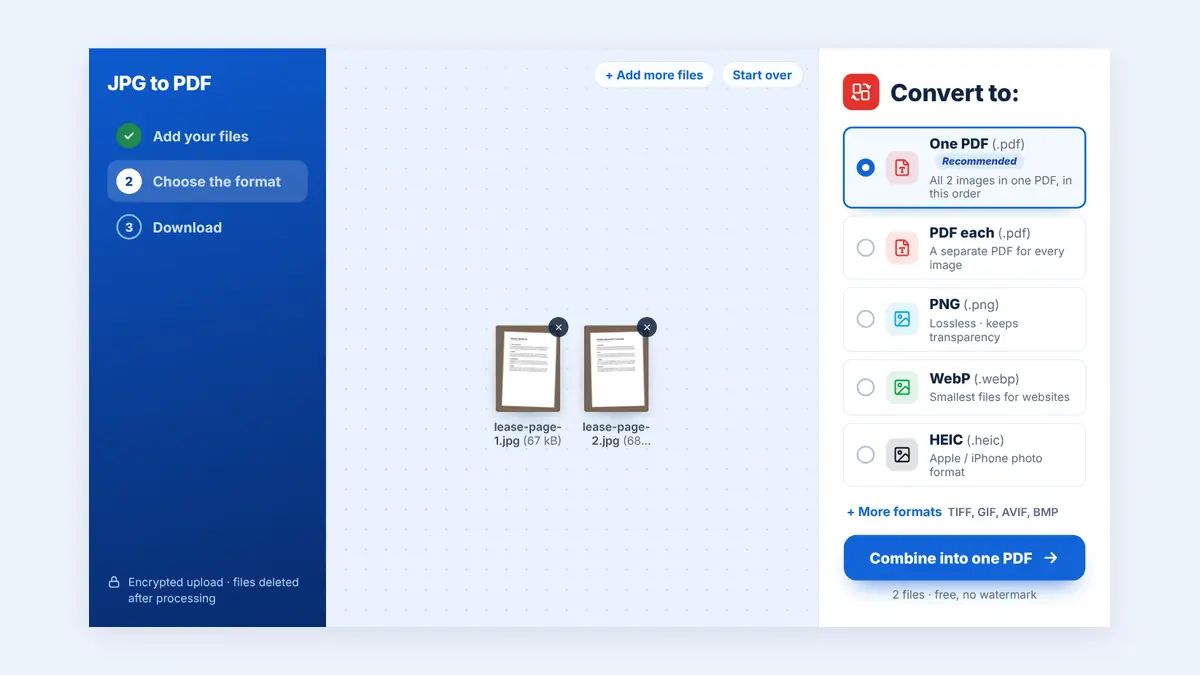
Whether you are preparing business paperwork, submitting application documents, or organizing personal photographs, this guide explains how to convert JPG files to PDF and get the best results.
Why Convert JPG Images to PDF?
JPG files work well for individual images, but a PDF is often more practical when several images belong to the same document.
Here are some benefits of converting JPG to PDF:
Combine multiple images: Put several JPG files into one document.
Keep pages organized: Arrange images in the order you want readers to see them.
Simplify sharing: Send one PDF attachment instead of multiple image files.
Prepare documents for printing: Place images on pages with consistent dimensions.
Organize business records: Combine receipts, invoices, and scanned paperwork into a single file.
Simplify document storage: Keep related images together for easier retrieval.
How to Convert JPG to PDF Online
You can use an online image-to-PDF converter to create a PDF from one or more JPG images.
Step 1: Select Your JPG Images
Choose the JPG or JPEG files you want to include. Before uploading, check that each image is clear, correctly oriented, and suitable for the document you are preparing.
If you are converting photographs of paperwork, ensure that the text and page edges are visible.
Step 2: Open an Image-to-PDF Converter
Visit HuntPDF.com and open the JPG to PDF converter.
Choose a tool that supports JPG files and, if needed, allows multiple images to be combined into one PDF.
Step 3: Upload Your Images
Select the JPG files from your computer or mobile device. If you are combining several images, add all the required files.
Check the selected files before continuing so that you do not accidentally include unrelated images.
Step 4: Arrange the Image Order
Arrange the images in the order you want them to appear in the PDF.
For example, when converting a multi-page application, place the first page first, followed by the supporting documents in the correct sequence.
Step 5: Choose the Page Layout
Depending on the converter, you may be able to adjust page size, orientation, margins, or image placement.
For scanned documents, A4 paper size is often appropriate. For photographs, choose a layout that preserves the image proportions without stretching or cropping important details.
Step 6: Convert and Download the PDF
Start the conversion and download the resulting PDF when it is ready.
Open the document and review every page. Confirm that all images are present, the order is correct, and text or important details have not been cut off.
How to Combine Multiple JPG Images into One PDF
Combining images is particularly useful when you need to create a multi-page document.
For example, imagine you have six JPG images containing receipts for a business expense claim. Instead of attaching six separate files to an email, you can combine them into one PDF for easier review.
Follow these steps:
Select all six JPG images.
Arrange them in the required order.
Upload them to a converter that supports multiple images.
Choose suitable page settings.
Convert the images into one PDF.
Open the resulting file and verify that all six pages are included.
The same process can help organize application forms, certificates, invoices, travel documents, and scanned paperwork.
JPG vs. PDF: What Is the Difference?
JPG and PDF serve different purposes. Understanding their differences helps you choose the right format.
| Feature | JPG | |
|---|---|---|
| Main purpose | Storing individual images | Presenting documents and pages |
| Multiple pages | Usually one image per file | Can contain many pages |
| Sharing documents | May require several attachments | Can combine related pages into one file |
| Image quality | Depends on image resolution and compression | Depends on the embedded image and conversion settings |
| Editing | Image-editing software | PDF software, with options depending on the content |
| Printing | Prints as an image | Can organize multiple pages for printing |
Converting JPG to PDF does not automatically improve image quality. It mainly changes how your images are packaged and presented.
How to Preserve Image Quality During Conversion
A clear PDF starts with good source images. Follow these tips to keep your document readable.
Use High-Quality Original Images
Avoid using blurry or heavily compressed images. If the original JPG is difficult to read, conversion alone will not restore missing details.
Avoid Stretching Images
Maintain the original proportions when placing images on PDF pages. Stretching can make photographs look distorted and text harder to read.
Check the Page Orientation
Some photographs are taken in portrait mode, while others are landscape. Review the orientation of each image and adjust it where necessary.
Review Small Text
If your images contain receipts, account numbers, dates, or signatures, zoom in after conversion to ensure that the information remains readable.
Check the Final File Size
Combining many high-resolution JPG images can create a large PDF. If the document is too large to email or upload, consider using a PDF compression tool. Review the compressed version to ensure important details remain clear.
Common JPG-to-PDF Problems and Solutions
Images appear in the wrong order: Arrange the images before conversion and check the finished PDF.
Some image edges are missing: Review page size, margins, scaling, and cropping settings.
The PDF is too large: Remove unnecessary images or compress the completed PDF.
Images appear blurry: Start with higher-quality source images and avoid excessive compression.
Pages have different sizes: Crop or resize the photos to a similar shape before converting.
Text in the images is not searchable: A standard JPG-to-PDF conversion creates image-based pages. If you need searchable text, use OCR software to recognize the text.
Can You Convert JPG to PDF on a Phone?
Yes. You can use a compatible mobile browser or document application to convert JPG images into PDF files.
The general process is similar on Android and iPhone:
Open an image-to-PDF tool or application.
Select the JPG images from your device.
Arrange the images in the correct order.
Adjust the layout if required.
Create and save the PDF.
Open the document to verify the results.
Keep enough free storage space on your device, particularly when combining large photographs.
Is It Safe to Convert JPG Images to PDF Online?
Before uploading images, consider whether they contain confidential information. Photographs of passports, identity cards, bank statements, signed forms, and business documents may contain sensitive details.
Review the service's privacy policy and file-handling practices before uploading such material. For highly confidential files, consider trusted offline software.
Remember that converting images to PDF does not automatically protect the document with a password or hide information shown in the images.
Frequently Asked Questions
Can I convert multiple JPG files into one PDF?
Yes. Use a converter that supports multiple image uploads and combines them into one PDF document.
Does converting JPG to PDF reduce image quality?
It can, depending on the conversion settings and compression used. Check the resulting PDF before sharing or printing it.
Can I convert JPG to PDF for free?
Some online tools offer free JPG-to-PDF conversion. Check the selected service for any file-size limits or other restrictions.
Can I convert JPG to PDF without installing software?
Yes. A browser-based converter can perform the conversion without requiring you to install a desktop application, provided the tool supports your files.
Is JPG the same as JPEG?
JPG and JPEG refer to the same image format. The difference is primarily in the file extension, not the underlying format.
Can I convert a PDF back into JPG images?
Yes. A PDF-to-JPG tool can convert PDF pages into separate image files. The output quality depends on the selected resolution and conversion settings.
Conclusion
Converting JPG to PDF is a simple way to organize photographs, scanned pages, receipts, and other images into one document. Select clear images, arrange them in the correct order, choose suitable page settings, and review the final PDF before sharing it.
Visit HuntPDF.com to turn photos into PDFs for free.
Free HuntPDF tools for this task
- JPG to PDF converter: turn photos into one PDF
- Convert any image to PDF: JPG, PNG, WebP and HEIC
- Reduce PDF size: make the finished file smaller
- HuntPDF.com: every free PDF and image tool in one place, with no sign-up and no watermark
Related guides: How to convert images to PDF · How to convert HEIC photos to PDF


Comments
Post a Comment