How to Add a Watermark to a PDF (Text or Logo)
A watermark is text or an image placed across the pages of a document. It can mark a file as a draft, show that it is confidential, or display your company name on every page. Watermarks are a simple way to discourage misuse and to make the status of a document obvious at a glance.
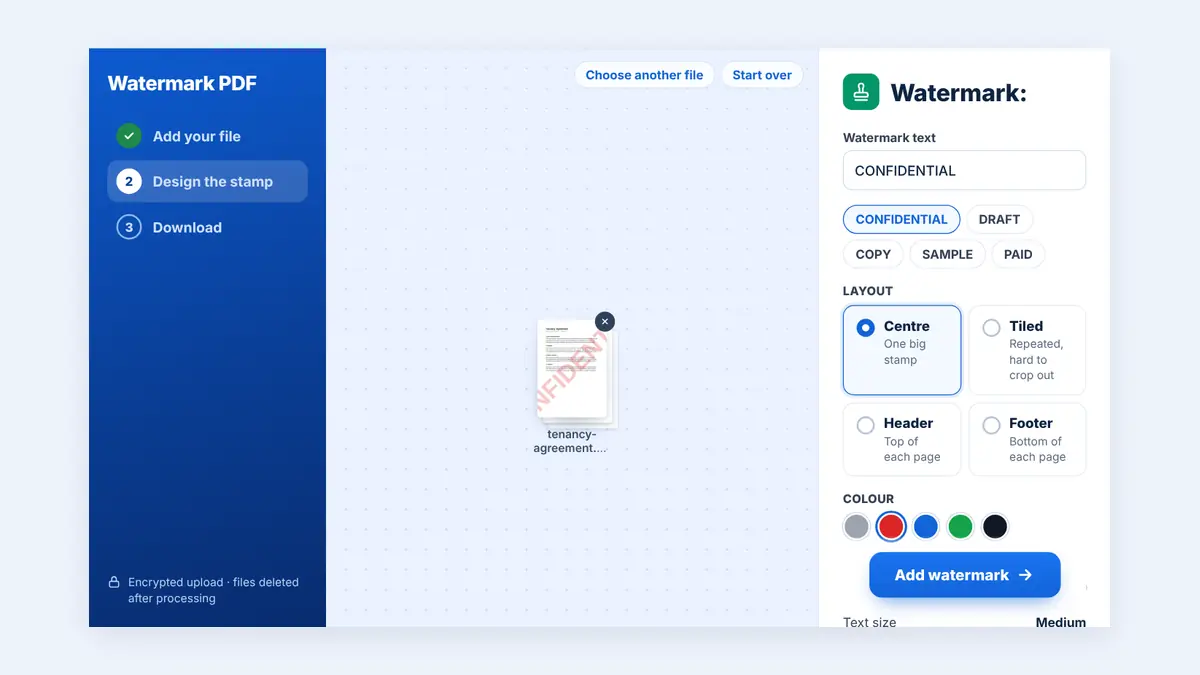
This guide explains when to use a watermark, how to add one to a PDF online, and how to make it harder to remove.
Common Reasons to Watermark a PDF
- Drafts: mark unfinished versions as "DRAFT" so nobody treats them as final.
- Confidential documents: remind readers that the file should not be shared.
- Branding: add a company name or logo to brochures, price lists, and proposals.
- Samples and previews: share a preview of paid work while discouraging reuse.
- Copies for specific people: add a name such as "Copy for J. Smith" to trace leaks.
Text Watermark or Image Watermark?
A text watermark is best for status labels like DRAFT, CONFIDENTIAL, or SAMPLE. It is quick to create and easy to read.
An image watermark works best for logos. Use a PNG with a transparent background so the logo sits cleanly on the page.
How to Add a Watermark to a PDF Online
Step 1: Open a watermark tool
You can add a text or logo watermark to a PDF for free in your browser.
Step 2: Upload your PDF
Select the document you want to mark.
Step 3: Enter your text or upload your image
Keep the text short. One or two words are easier to read than a full sentence.
Step 4: Adjust the layout
A diagonal watermark across the centre of each page is the most common style. Lower the opacity so the underlying text stays readable.
Step 5: Download and check
Open the result and confirm that the watermark appears on every page and does not hide important content such as numbers or signatures.
Getting the Balance Right
A watermark that is too faint is easy to ignore. One that is too strong makes the document hard to read. As a starting point:
- Use a light grey or the brand colour at low opacity.
- Place it diagonally so it crosses the main text area.
- Test by printing one page if the document will be used on paper.
How to Make a Watermark Harder to Remove
No watermark is impossible to remove, but you can make it much more difficult:
- Place it across the main content rather than in a margin that can be cropped.
- Flatten the PDF after watermarking so the mark becomes part of the page content instead of a separate editable element.
- Add permission restrictions or a password if the document is confidential.
Frequently Asked Questions
Does a watermark change the original document?
It adds a layer to each page. Keep an unmarked original if you will need a clean copy later.
Can I watermark only some pages?
Most watermark tools apply the mark to every page. If you need it on selected pages only, split the document, watermark the relevant part, and merge it back together.
Will a watermark increase file size?
A text watermark adds very little. A large image watermark can add more, so use a reasonably sized logo.
Conclusion
A clear, well-placed watermark tells readers exactly what a document is and who it belongs to. Keep it readable, flatten the final file, and store an unmarked original for your own records.
Free HuntPDF tools for this task
- Watermark a PDF: stamp DRAFT, CONFIDENTIAL or your own text
- Flatten PDF: make the watermark part of the page
- Protect PDF with a password: control printing and copying
- HuntPDF.com: every free PDF and image tool in one place, with no sign-up and no watermark
Related guides: How to password-protect a PDF · How to add page numbers to a PDF


Comments
Post a Comment