How to Password-Protect a PDF Before Sharing It
Many PDFs contain information that should not be open to everyone: payslips, contracts, bank statements, medical forms, or client reports. Once you email a file or upload it to a shared folder, you lose control over who opens it next. Adding a password is one of the simplest ways to keep a document private.
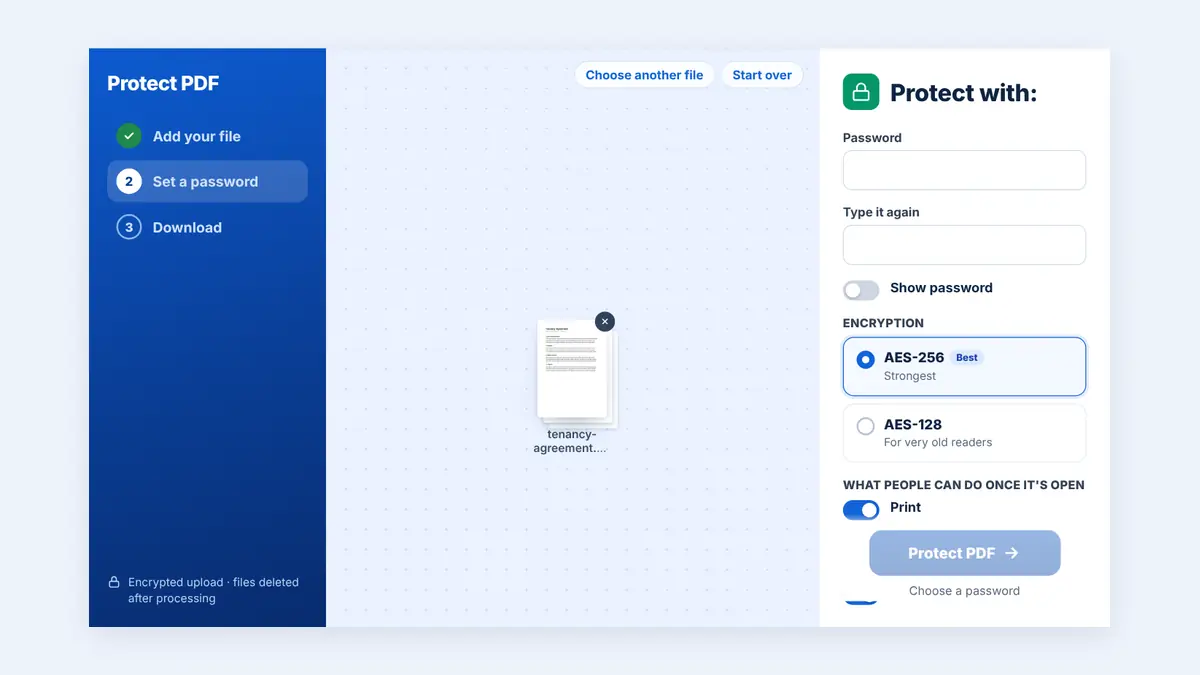
This guide explains how PDF password protection works, how to add a password online, and what to do when you need to remove one later.
What Does Password-Protecting a PDF Actually Do?
When you protect a PDF, the file is encrypted. Anyone who tries to open it must enter the correct password first. Without it, the content cannot be read, even if someone copies the file to another device.
There are usually two kinds of protection:
- Open password: required to view the document at all.
- Permission restrictions: control whether people can print, copy text, or edit the file after opening it.
Modern tools use AES encryption. AES-256 is the strongest option commonly supported by PDF readers, so choose it when you have the choice.
How to Password-Protect a PDF Online
Step 1: Open a PDF protection tool
You can password-protect a PDF online without installing software. Open the tool in your browser on a computer or phone.
Step 2: Upload your document
Select the PDF from your device or drag it into the upload area.
Step 3: Choose a strong password
Use at least 12 characters and mix words, numbers, and symbols. Avoid names, birthdays, or anything printed inside the document itself.
Step 4: Set permissions if needed
If you want people to read the file but not copy or edit it, turn on the relevant restrictions before processing.
Step 5: Download and test the file
Download the protected PDF and open it once to confirm the password works. Keep a copy of the unprotected original in a safe place in case you forget the password.
How to Share the Password Safely
A password only helps if it travels separately from the file. Good habits include:
- Send the PDF by email and the password by text message or phone call.
- Never write the password in the same email as the attachment.
- Use a different password for each sensitive document.
- Agree on a password in person for recurring documents, such as monthly reports.
When You Need to Remove a Password
Sometimes protection gets in the way. You may need to merge a protected file with others, or you are archiving documents on a secure drive and no longer need a password on each one. If you know the password and have the right to the file, you can remove the password from a PDF and save an unrestricted copy.
Only unlock documents you own or have permission to change. Removing protection from someone else's file without permission is not appropriate.
Password Protection vs. Redaction
A password controls who can open a document. It does not remove information from it. If you need to share a document but hide certain details, such as account numbers or personal addresses, you should permanently black out sensitive text instead. Real redaction removes the hidden text from the file, rather than simply covering it with a black box that can be moved.
For very sensitive files, you can use both: redact the details that recipients should never see, then add a password to the final version.
Frequently Asked Questions
Can a protected PDF be opened on a phone?
Yes. Most PDF readers on Android and iPhone ask for the password when you open the file.
What happens if I forget the password?
Strong encryption cannot be bypassed easily, which is the point. Always keep the original file or store the password in a password manager.
Does a password reduce file quality?
No. Encryption protects the file without changing the pages, images, or text.
Conclusion
Adding a password takes less than a minute and gives you real control over who reads your documents. Use a strong password, share it through a separate channel, and keep an unprotected original stored safely.
Free HuntPDF tools for this task
- Password-protect a PDF: AES-256 encryption
- Unlock a PDF: remove a password you know
- Redact a PDF: black out sensitive text for good
- HuntPDF.com: every free PDF and image tool in one place, with no sign-up and no watermark
Related guides: How to add a watermark to a PDF · How to sign a PDF online


Comments
Post a Comment