PDF to JPG or PNG: Which Image Format Should You Choose?
Sometimes you need a PDF page as a picture: to post it on social media, insert it into a presentation, attach it to a form that only accepts images, or show a single page in a chat. Converting PDF pages to images is easy, but choosing between JPG and PNG makes a real difference to quality and file size.
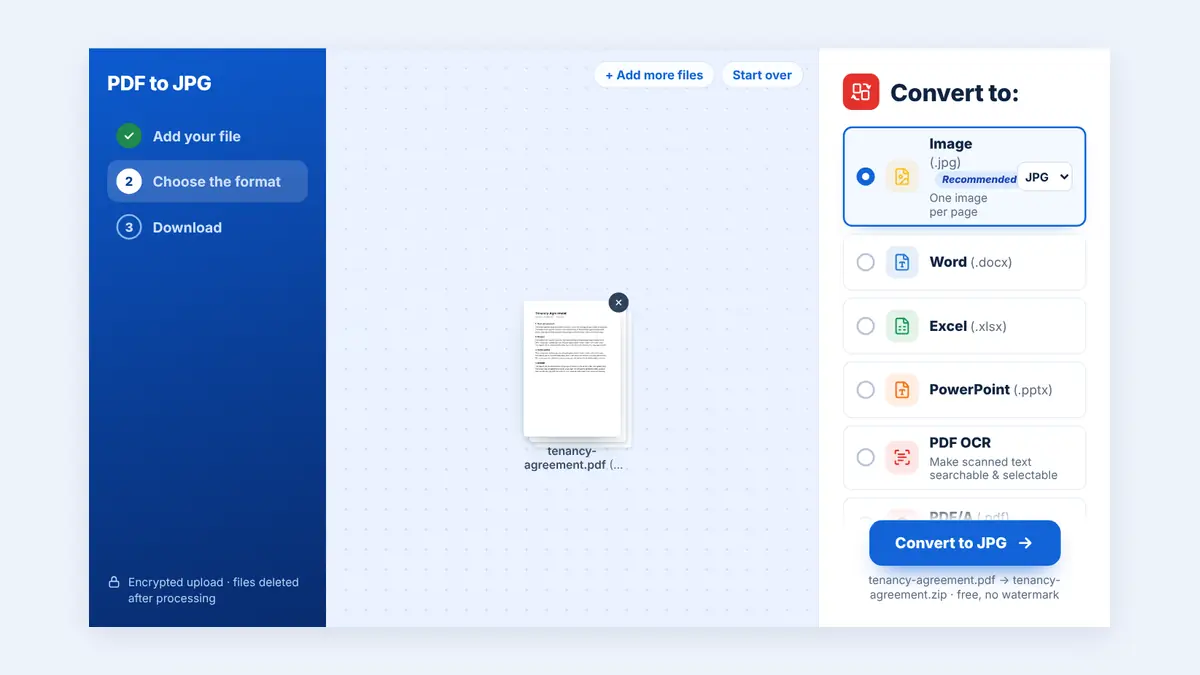
This guide explains the difference between the two formats and helps you pick the right one for your task.
JPG and PNG in Simple Terms
JPG uses lossy compression. It keeps files small by discarding detail the eye is unlikely to notice. It is ideal for photographs and pages with lots of images.
PNG uses lossless compression. Every pixel is kept exactly, so text and sharp lines stay crisp. PNG files are usually larger, and they support transparency.
When to Choose JPG
- The page is mostly photographs, such as a brochure or catalogue.
- You need small files for email or upload limits.
- The image will be viewed on screens rather than edited further.
To turn every page into its own picture, you can convert PDF pages to JPG images in a few seconds.
When to Choose PNG
- The page contains text, tables, charts, or diagrams.
- You need sharp edges with no blurry artefacts around letters.
- You plan to edit the image or place it on a coloured background.
For documents like invoices, reports, and slides, it is usually better to save PDF pages as lossless PNG files.
Quick Comparison
- Best for photos: JPG
- Best for text and diagrams: PNG
- Smaller files: JPG
- Perfect quality: PNG
- Transparency support: PNG only
Converting Pages vs. Extracting Images
Converting a PDF to JPG or PNG creates one image per page, including all text and layout. That is different from pulling out the photos that are embedded inside a PDF.
If you only want the original pictures, such as product photos in a catalogue or figures in a report, it is better to extract the images from the PDF. You get each picture at its original quality, without the surrounding text.
How to Convert a PDF to an Image
Step 1: Choose your format
Decide between JPG and PNG using the guidance above.
Step 2: Upload the PDF
Open the converter in your browser and select your file.
Step 3: Convert and download
Each page becomes a separate image. Multi-page documents are usually downloaded together in a ZIP file.
Step 4: Check the result
Zoom in on small text to confirm it is readable before sharing the images.
Tips for Better Results
- Start from the original digital PDF instead of a scanned copy when possible.
- Use PNG for anything you will print or zoom into.
- Rename the images with page numbers so they stay in order.
Frequently Asked Questions
Can I convert just one page?
Yes. Convert the document and keep only the image you need, or extract the page first and convert that.
Why does my JPG look blurry around text?
JPG compression can soften sharp edges. Try PNG for pages that are mainly text.
Can I turn the images back into a PDF?
Yes. You can combine JPG or PNG images into a new PDF at any time.
Conclusion
Choose JPG for photos and small files, PNG for text and sharp detail, and extraction when you only need the embedded pictures. Picking the right option saves time and gives you cleaner images.
Free HuntPDF tools for this task
- PDF to JPG converter: one image per page
- PDF to PNG converter: lossless, sharp text
- Extract images from a PDF: get the original pictures
- HuntPDF.com: every free PDF and image tool in one place, with no sign-up and no watermark
Related guides: How to convert images to PDF · How to convert JPG to PNG


Comments
Post a Comment